You’ve tried ChatGPT a few times or saved tutorials you still haven’t opened. What could you use it for tomorrow?
This free 30-day AI challenge gives you one task a day. The tables show what to save, and the exercises include sample prompts when you need them. Budget about 15–30 minutes a day.
- Week 1 · Prompts. Practice writing clearer instructions for AI. Use a short work message to see how the answer changes when you add context, tell AI what to keep, or show an example of the output you want.
- Week 2 · Writing and documents. Apply those skills to drafting and editing work documents. Pull decisions and next steps from meeting notes, adapt an email for team chat, or ask AI for feedback on a paragraph you wrote.
- Week 3 · Data and research. Use AI to organize weekly counts and explain what changed. Then compare two sources on a practical question, such as what to include in a meeting reminder. Check the math and read the sources yourself.
- Week 4 · Automation and building your own workflow. Build a repeatable process for a task you do often, such as turning meeting notes into a weekly status update. Reuse the same instructions and measure whether AI saves you time.
Days 29 and 30 help you organize your examples and choose what to practice next.
The full plan is below, along with what to do if you miss a day.
The 30-day plan at a glance
You can use ChatGPT, Claude, or Gemini for the challenge. In the tables below, “AI” refers to whichever assistant you choose. “Notes” means a document where you can plan a task or record your work.
Week 1 (days 1 to 7)
| Day | Task | Tool | Estimated time | What to save |
|---|---|---|---|---|
| 1 | Identify tasks AI could help with | Notes | 15 min | Your shortlist and first task |
| 2 | Gather context for a prompt | Notes | 15 min | Context notes and files |
| 3 | Choose a format for the AI answer | AI | 15 min | A format that fits the task |
| 4 | Make a checklist of what the AI answer should include | AI + notes | 15 min | Checklist of what the AI output should include |
| 5 | Share an example of the desired output if you have one | AI + notes | 15 min | One or more examples of the output you want in one document |
| 6 | Ask AI to fix one issue in an earlier answer | AI + notes | 15 min | What went wrong, the feedback you gave, and what changed |
| 7 | Build one or two reusable prompts for work | Notes | 15 min | Your prompt templates |
Week 2 (days 8 to 14)
| Day | Task | Tool | Estimated time | What to save |
|---|---|---|---|---|
| 8 | Draft an email about a schedule change | AI | 15 min | Your changes to the email |
| 9 | Ask AI for feedback on a paragraph you wrote | AI | 15 min | Your changes to the paragraph |
| 10 | Pull decisions and next steps from meeting notes | AI | 15 min | Your prompt and changes to the follow-up |
| 11 | Draft a 30-minute meeting agenda | AI | 15 min | Your prompt and any changes to the agenda topics or timing |
| 12 | Adapt an email for team chat and a calendar invite | AI | 15 min | Your prompt and any edits to the chat message and calendar description |
| 13 | Explain how to check a meeting invite and set a reminder | AI | 15 min | Your prompt and any steps you had to clarify |
| 14 | Review your writing prompts | Notes | 15 min | Prompts you want to keep and a note on what worked |
Week 3 (days 15 to 21)
| Day | Task | Tool | Estimated time | What to save |
|---|---|---|---|---|
| 15 | Make a table of how many customer support requests came in each week | AI | 15 min | Your prompt and any fixes you made to the table |
| 16 | Check the total and the weekly change in customer support requests | AI + calculator | 15 min | Your calculation and any numbers you corrected |
| 17 | Draft a team update from weekly support counts | AI | 15 min | Your prompt and checked team update |
| 18 | Find two sources on meeting reminders with AI | Browser + AI | 15 min | Your research question and two source links |
| 19 | Check what one source recommends for meeting reminders | Browser + AI | 20 min | One tip you verified and its source link |
| 20 | Compare two sources’ advice on meeting reminders | Browser + AI | 20 min | Where the sources agree, any differences, and both links |
| 21 | Ask AI to draft a recommendation for meeting reminders | AI + notes | 20 min | AI’s draft recommendation, links to the sources it used, and your corrections |
Week 4 (days 22 to 28)
| Day | Task | Tool | Estimated time | What to save |
|---|---|---|---|---|
| 22 | Choose a recurring task, time it without AI, and map the steps | Timer + notes | 15 min | Your starting material, the steps, what a good result looks like, and your time without AI |
| 23 | Write prompts for the steps AI can help with | Notes | 15 min | Your prompts and what to give AI at each step |
| 24 | Make a checklist for reviewing the result | Notes | 15 min | Your checklist for deciding whether the result is ready to use |
| 25 | Turn your prompts and checks into a reusable template | Notes | 15 min | Your template with prompts, details to fill in, and review steps |
| 26 | Try your template on a new example of the same task | AI | 15 min | What worked, what went wrong, and any instructions you’d change |
| 27 | Edit a guide for running your workflow again | Notes | 15 min | Your guide and any steps you clarified after trying it |
| 28 | Compare how long your task takes with and without AI | AI + timer | 20 min | Both timings, the difference, and any fixes you made to the AI result |
Days 29 and 30
| Day | Task | Tool | Estimated time | What to save |
|---|---|---|---|---|
| 29 | Document how you used AI in three practice tasks | Notes | 20 min | Three examples showing the task, your prompt, and what you corrected |
| 30 | Choose a workflow to repeat and one new thing to test | Notes | 15 min | One task or workflow to repeat, one experiment, and how you’ll judge each |
How the challenge works
First, choose an AI assistant you’ve already used. If you haven’t used an AI assistant before, you can try a free plan from ChatGPT, Claude, or Gemini. Usage limits vary by tool and can change. If you reach a limit, check the app for the reset time.
The ChatGPT beginner guide and Claude beginner guide cover setup if you need it.
This AI 30-day challenge uses short text you paste into chat. No exercise depends on paid uploads, connected accounts, or scheduled tasks.
Try the sample tasks as written or pick an idea from the job-specific examples below and adapt it to your work. When an exercise includes a prompt, replace the bracketed text with your details. When a later day builds on your work, keep using the same task or question.
- Use fictional or non-confidential inputs. Keep employer and client information out of personal accounts.
- Spot-check a few details in routine drafts against your notes or the original source.
- Verify anything people will rely on, such as a deadline. For work where an error could have serious consequences, such as a financial report, review the entire output and verify every figure and claim against the original records.
- After each exercise, write the day number in your notes. Copy in what the table above lists under What to save or add a link to the chat.
Job-specific tasks to try in the challenge
Pick a task for your role and adapt the prompt on the suggested day. Use the last column to check the result.
| Role | Practice task | When to try it | What to check |
|---|---|---|---|
| Marketing | Ask for feedback on a paragraph from a campaign brief | Day 9 | Tone and whether the edits preserve approved claims |
| Finance | Add up three weeks of fictional expenses and compare the first two weeks | Day 16 | The total, the change between weeks, and the currency |
| HR | Draft a 30-minute agenda for an interview debrief | Day 11 | Whether the topics fit the time and cover the decisions the group needs to make |
| Operations | Turn a delivery log into a list of orders that need follow-up | Days 22–28 | Order numbers and which deliveries still need action |
| Managers | Compare two sources on how to run a project retrospective | Days 18–21 | Which advice each source supports and when it applies |
Week 1: give clearer instructions
Write your prompt in plain language, as if you were explaining the task to a colleague. Be specific about what you want back and include the details a colleague would need to do the work.
Change one instruction at a time. One ChatGPT user reported that a shorter rewrite improved a disappointing answer. Test clarity before adding more detail.
On day 1, you’ll choose a task to work on this week. As an example, I chose to ask AI to draft an email telling your colleagues about a fictional schedule change (The team workshop has moved from Tuesday to Thursday at 10 a.m. It lasts 30 minutes. Attendees can join without preparing anything. The meeting link will follow.)
Note: Use this week to try different prompting techniques. When you write a prompt for your own work, use the techniques that fit the task.
Day 1: identify tasks AI could help with
Think of two or three things you already do, such as writing an email or turning rough notes into a handover. For each, jot down what you could give AI and what you’d want back. Start with a task you can try with a short, non-confidential example and check against the original. You’ll gather the details on day 2.
Day 2: gather context for a prompt
Gather the context for the task you chose on day 1. In your notes, write down who the result is for, what they need from you, and which facts you can confirm. Flag anything you still need to find out.
For the workshop email, note who should receive it, the new day and time, the duration, and whether anyone needs to prepare. Mark the meeting link as pending.
Keep your notes handy. On day 3, you’ll paste the relevant parts into the chat.
Day 3: choose a format for the AI answer
Choose a format based on what you’ll do with the answer. A short message announces a schedule change. A table helps track which details are confirmed and which are missing. A checklist works for steps someone needs to follow.
Create [output] for [audience] in [chosen format]. The goal is [purpose]. Use the confirmed facts and flag any missing details. [Context notes from day 2.]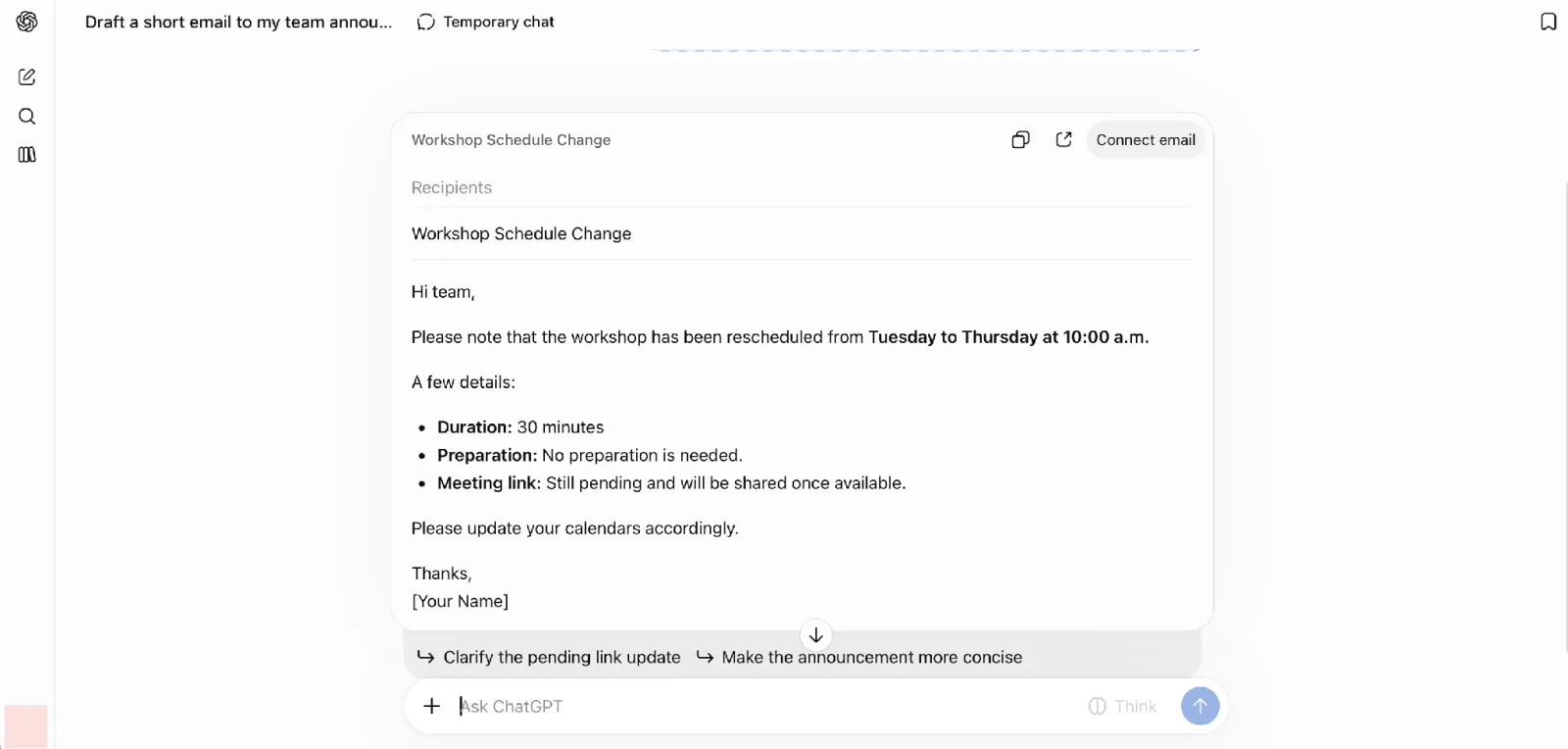
Screenshot: ChatGPT (OpenAI). ChatGPT turned the workshop notes into a team email and marked the meeting link as pending.
Keep the draft or a link to the chat so you can revise it on day 4.
Day 4: make a checklist of what the AI answer should include
Make a checklist of what the answer needs to include. For the workshop message, use these four items.
- New day and time at the top
- How long the workshop lasts
- Whether attendees need to prepare
- Whether the meeting link is available
Add a word or character limit if the answer needs to fit a fixed space, such as a form field.
Revise my draft using this checklist. Follow the order on the list and keep the confirmed facts. [Your checklist and day 3 draft.]Read the revised answer with your checklist beside you. Mark any item AI missed so you can make the instruction more specific.
Day 5: share an example of the desired output if you have one
If you have a sample of the output you want, share it with AI. A past messages can show the tone and structure. Try this fictional one for a schedule change.
Quick update. The Friday demo is moving to Monday at 2 p.m. The link will follow.
Revise my draft. Follow the tone and structure of this sample and keep the facts from my draft. [Sample and draft.]Compare the revised draft with your example. Check that it follows the same structure and keeps the facts from your draft.
Day 6: ask AI to fix one issue in an earlier answer
Pick one issue in an earlier answer. If it sounds too formal for your team, ask for simpler wording.
This answer is too [formal, long, or vague]. Please [describe the change you want] and keep the confirmed details. [Earlier answer.]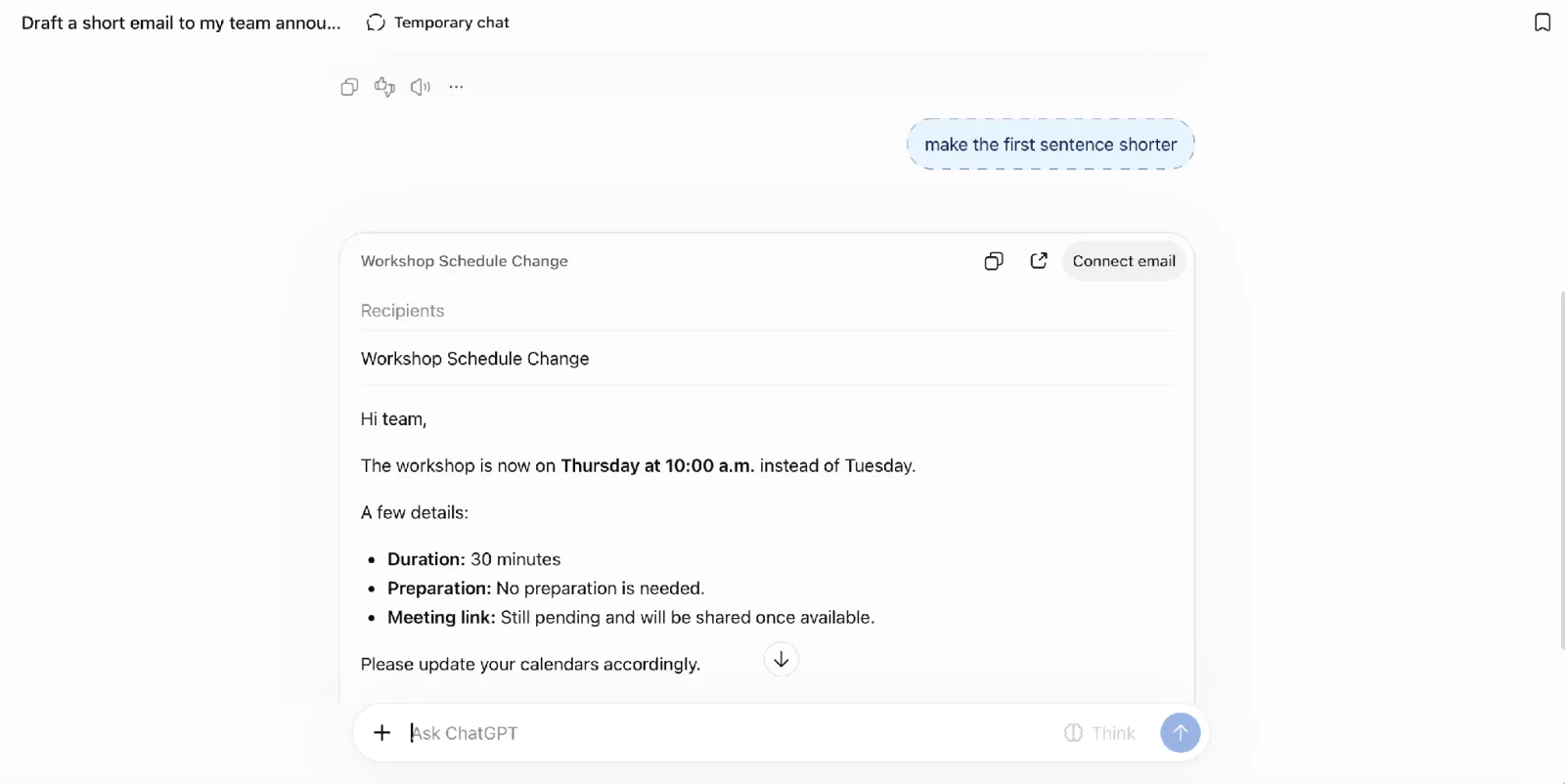
Screenshot: ChatGPT (OpenAI). I asked ChatGPT to shorten the opening sentence. The revision kept the new time and the other workshop details.
Read both versions side by side. Notice what improved so you can turn that piece of feedback into a standing instruction on day 7.
Day 7: build one or two reusable prompts for work
Pick a task you do often and look back at your prompts and notes from the week. Start with what you want AI to produce, then combine instructions from different days that you’d use again.
For more examples, see the guide to better AI prompts.
Would you like guided practice after your first week? Coursiv’s paid program offers short lessons and built-in practice that fit a busy schedule.
Week 2: write and edit useful documents
Use documents from your own work, find examples, or generate them with AI :).
Day 8: draft an email about a schedule change
Use the workshop note or write about another schedule change, such as a team meeting moving to a new day.
Try saying the prompt aloud using your assistant’s built-in dictation if it’s available. ChatGPT and the Claude mobile app both have this option. On a Mac, you can also use the Pipit desktop app. Check the date and time in the transcript before you send it.
Draft an email to [recipients] about [schedule change]. Write a subject line and lead with the new date and time. Include the details people need, such as the location, prep instructions, or when the link will arrive. [Confirmed details.]Check that the subject line makes sense on its own. Keep the edited email handy for day 12.
Day 9: ask AI for feedback on a paragraph you wrote
Choose a paragraph you wrote, such as part of a project update or a handover note.
Suggest up to three edits that would make this paragraph noticeably clearer. Keep wording that already works. Explain why each edit helps, then show the revised paragraph with my meaning intact. If it’s already clear, say so. [Your paragraph.]Read each suggestion in context. Keep your original wording wherever an edit changes the meaning or sounds wrong for the audience.
Day 10: pull decisions and next steps from meeting notes
Start with notes that capture a decision and a follow-up. You can dictate a quick recap after the meeting or copy the relevant lines from a transcript you’re allowed to use, such as one from Grain or Microsoft Teams. For example, your team agreed on a new meeting time and asked someone to send the invite.
Turn these meeting notes into a team follow-up. Separate decisions, agreed actions, and open questions. Include an owner or deadline when the notes give one. Flag missing details. [Meeting notes.]Check that each action was agreed in the meeting and that the notes confirm who owns it and when it’s due.
Day 11: draft a 30-minute meeting agenda
Pick a 30-minute meeting you could run, such as a project check-in. Decide what the group needs to accomplish by the end.
Draft a 30-minute agenda for [meeting]. The goal is [outcome]. Include [topics] and give each item a time budget that adds up to 30 minutes.Add up the time blocks. If the agenda runs long, move a topic that can wait to another meeting.
Day 12: adapt an email for team chat and a calendar invite
Today you’ll practice using AI to repurpose content for different channels. Start with the email from day 8 or another announcement. In team chat, people should see what changed at a glance. In the calendar invite, they should find the details they’ll look up before joining.
Use my email to write a short team chat message that leads with what changed. Then draft a calendar invite description with the new time and any details people need before joining. Keep the facts consistent. [Email.]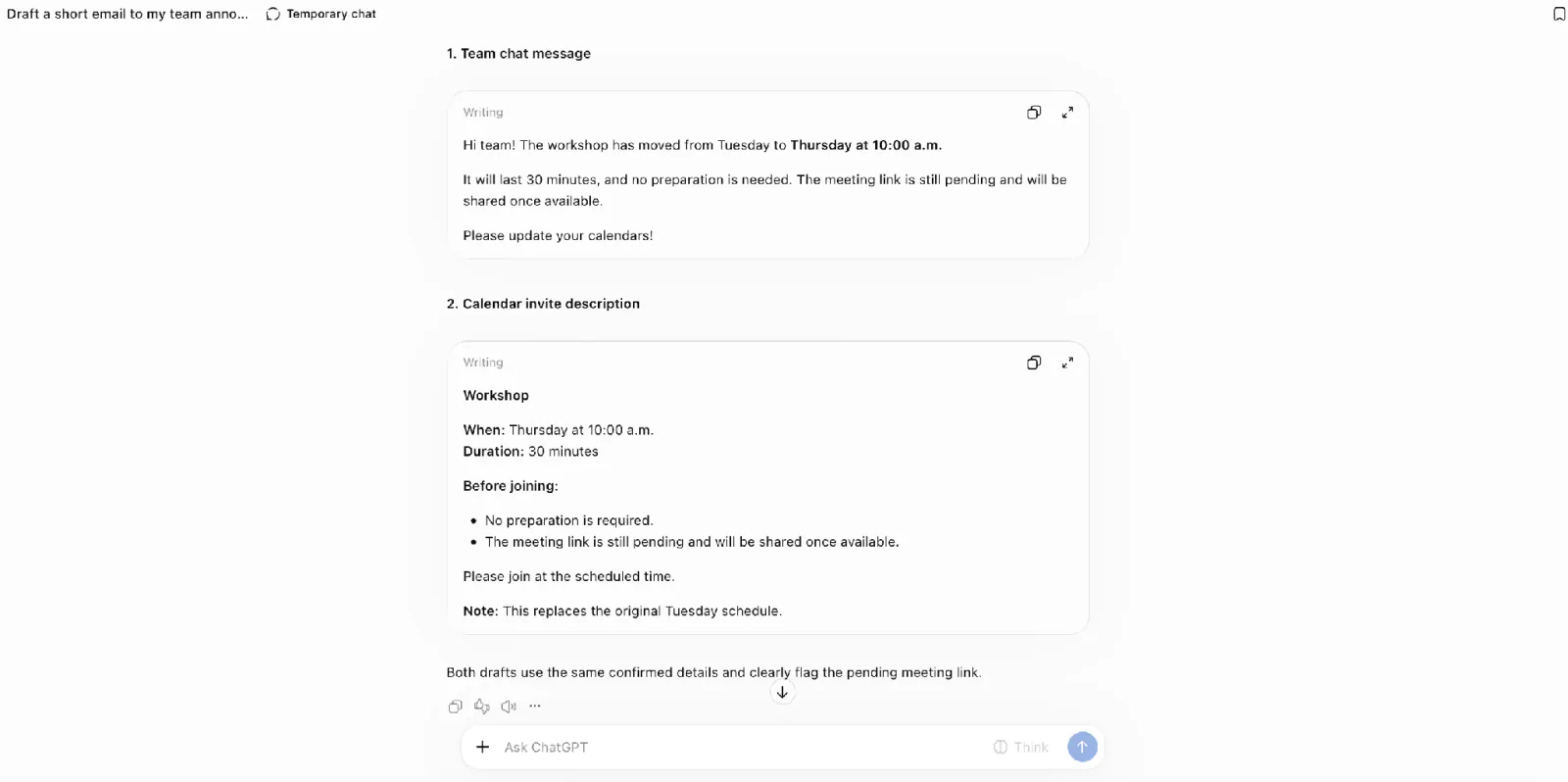
Screenshot: ChatGPT (OpenAI). The chat message leads with the schedule change. The calendar invite lists the time and what attendees need before joining. Both mark the meeting link as pending.
Read each version on its own. Check whether someone who missed the email can tell what changed and what they still need to know.
Day 13: explain how to check a meeting invite and set a reminder
Choose a short process you know well. Try checking a meeting invite and setting a reminder, or explain how to hand over a support ticket.
Help me write instructions a new colleague can follow to [task]. Before drafting, ask me about any steps that need more detail, such as which app to open or where to find a setting. Use my answers to fill in the gaps and keep the steps in order. [Your steps, for example open the invite, confirm the time, and set a reminder.]Walk through the instructions yourself. If a step depends on the calendar app, add the app name and where to find the setting.
Day 14: review your writing prompts
Look back at the prompts you used this week and the drafts they produced. Jot down what worked and what you had to fix. If you expect to repeat a task, update its prompt while the edits are fresh. Keep any prompts you’d use again or borrow from for a similar task.
Week 3: analyze data and research a question
For days 15–17, use one set of weekly counts, such as registrations or completed orders. In the my example, a support team received 12 requests in week 1, 18 in week 2, and 15 in week 3.
Day 15: make a table of how many customer support requests came in each week
Gather three weeks of counts for the same type of request or activity. Use the sample figures above if you don’t have your own.
Make a table with one row per week and two columns called Week and [what you counted]. Keep the original counts. [Three weekly counts.]Spot-check a couple of rows against the original figures to make sure the counts are next to the right weeks. On day 28, you’ll include review time when you compare doing a task with and without AI.
Day 16: check the total and the weekly change in customer support requests
Use your table from day 15 to calculate the total and how much the count changed from week 1 to week 2.
Using this table, add up the three weekly counts and show the change from week 1 to week 2. Show the arithmetic. [Your table.]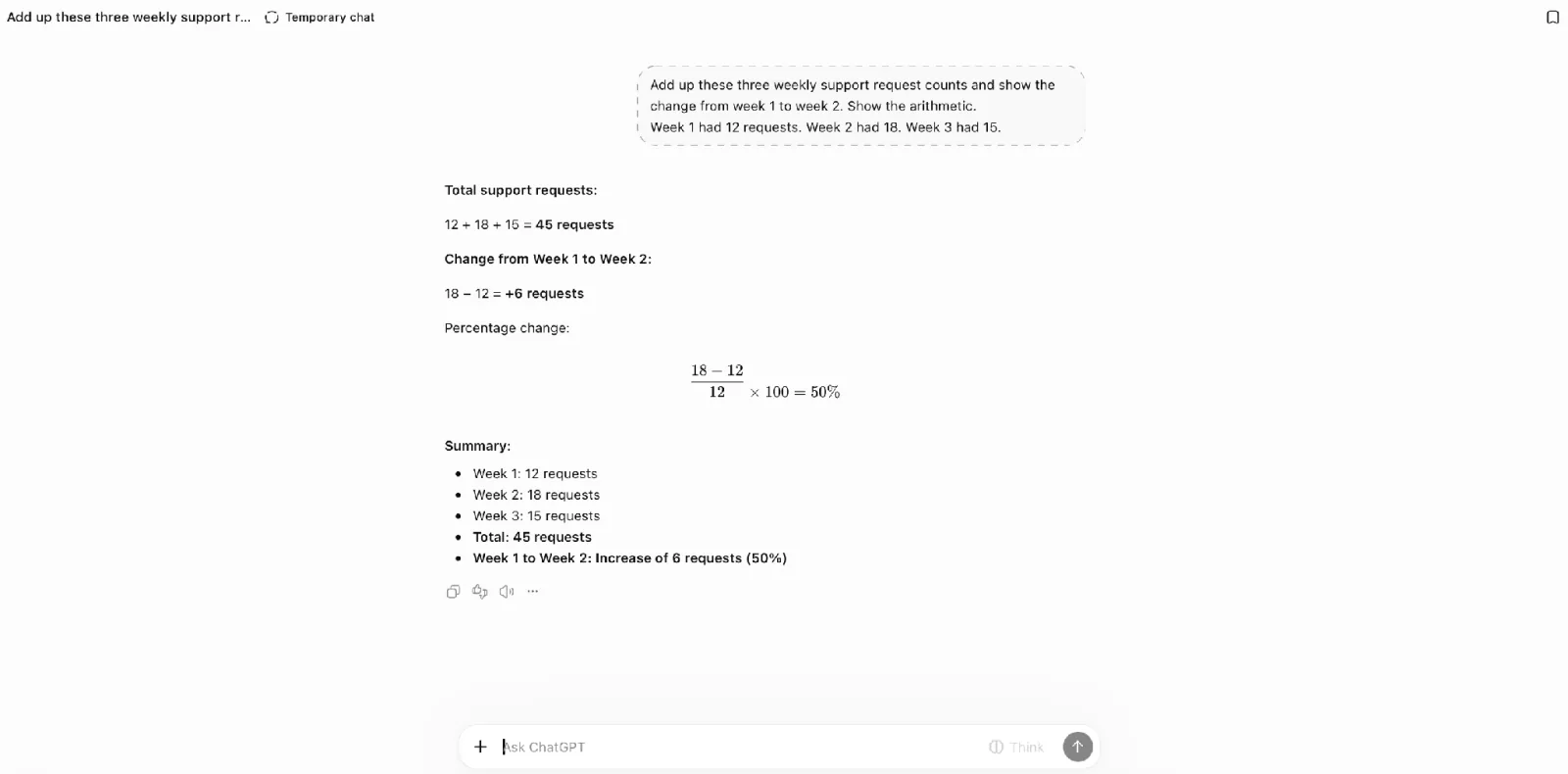
Screenshot: ChatGPT (OpenAI). The answer shows the arithmetic for the total and the increase from week 1 to week 2. It also gives the percentage change.
Check both numbers with a calculator. The sample totals 45 requests, with 6 more requests in week 2 than in week 1.
Day 17: draft a team update from weekly support counts
Imagine you post a short update in team chat every week. Give AI the table you checked on day 16 and have it turn the figures into a draft you can share.
Draft a short message for [team] about [reporting week]. Include the support request count and how it changed from the previous week. Base the message on these figures. [Your checked table.]Check the draft against the table before you share it. The next time you need the same update, reuse the prompt with a fresh set of checked counts.
Day 18: find two sources on meeting reminders with AI
Pick a question you can research using public sources. For instance, try asking what to include in a meeting reminder or what belongs in a new-hire checklist. Keep the same question through day 21.
Search the web for two public sources that help answer [question]. Prioritize articles and posts by people with relevant expertise or reporting from established publications. Give me the author or publication and a direct link for each source.Open both links and check that the pages address your question.
Day 19: check what one source recommends for meeting reminders
Choose one of the pages from day 18 and pick a relevant passage.
Answer [research question] using this article. Give one tip and quote the sentence that supports it. [Short excerpt.]Find the quoted sentence on the original page.
Day 20: compare two sources’ advice on meeting reminders
Reopen both sources from day 18. Give AI both links if it can open web pages. You can also paste a short passage from each page that addresses the same part of your question.
Compare how these two sources answer [research question]. Show where they agree, where their advice differs, and which situations each source is writing about. Support each point with a short, exact quote. If both sources make the point, quote both. [Source links or short excerpts.]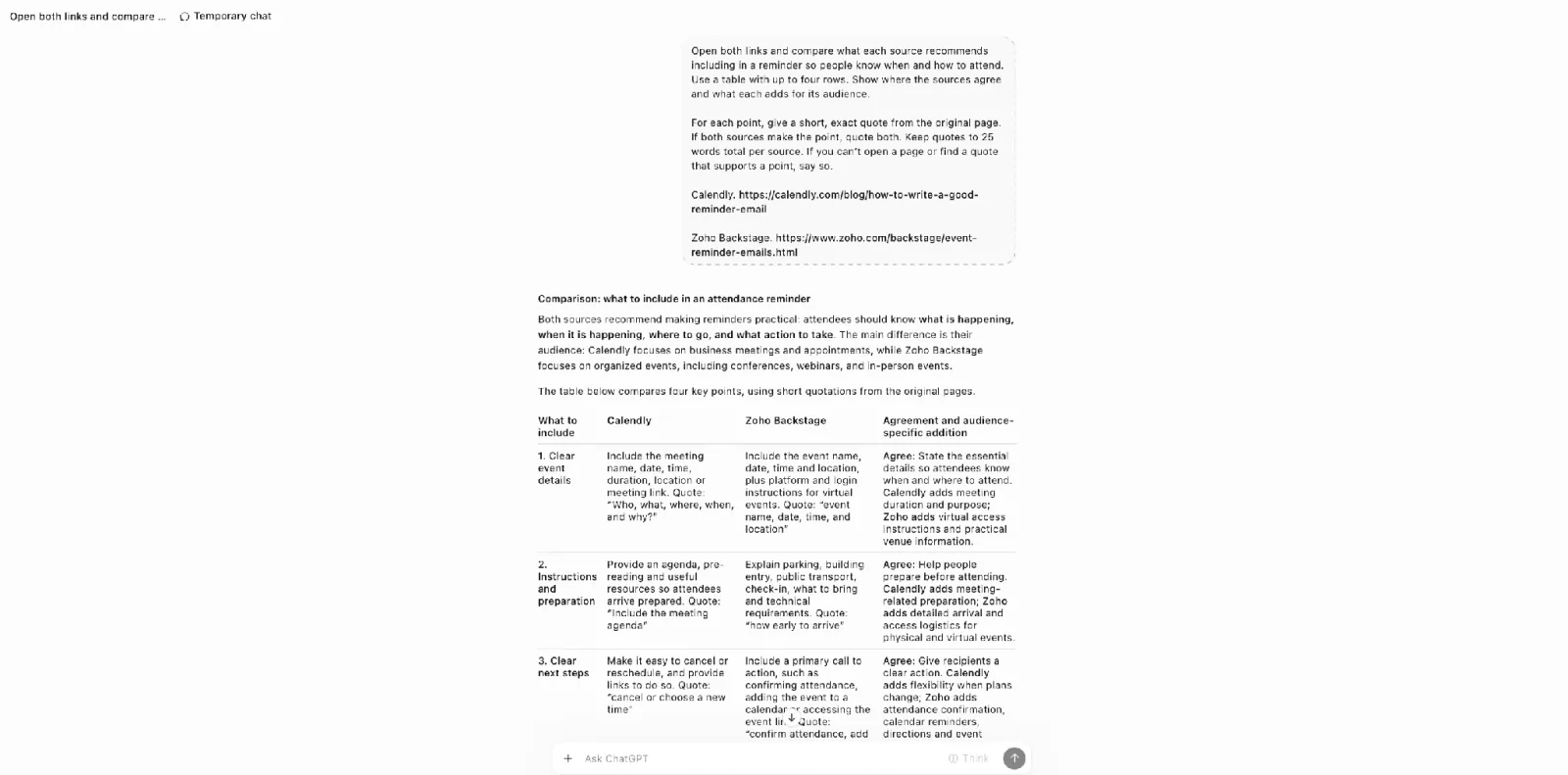
Screenshot: ChatGPT (OpenAI). I gave ChatGPT links to both guides and asked for a quote to support each point. The screenshot shows the start of the comparison table.
Check the comparison against both pages. If the advice differs, see whether the sources cover different situations, such as a recurring team meeting and a one-off event.
Day 21: ask AI to draft a recommendation for meeting reminders
Ask AI to turn your checked notes into a recommendation for the team.
Use my checked notes to draft a recommendation of about 120 words for [team] about [topic]. Suggest one change, explain which source supports it, and flag anything that remains uncertain. [Notes and source links.]Match each factual claim to a passage in your notes. If the advice only applies in a particular situation, make that clear in the recommendation.
Week 4: build a workflow you can repeat
Pick one short process you do often, such as drafting a support reply or turning notes into a shift handover. Use that task all week.
Day 22: time the chosen process without AI, map the steps
For example, if your task is to draft a support reply, start the timer when you begin gathering the information you need. Stop it when the reply is ready to send. Include any checking and editing you normally do.
Write down the steps you took and how you knew the result was ready. For a shift handover, you might have read the shift notes, grouped the open issues, and checked who owns each one. Keep your timing and a note on the amount of work, such as how many issues you covered. That will help you pick a comparable example on day 28.
Day 23: write prompts for the steps AI can help with
Look through your steps from day 22 and pick one or two where you can give AI enough information to help. For a handover, one step could be pulling unresolved issues from the shift notes.
Write a short instruction for each step you picked. Name the exact material you’ll supply and describe what you want back. If a step depends on the previous answer, make a note to include that answer as input. You’ll try the prompts on day 26.
Day 24: make a checklist for reviewing the result
Look at what counted as a finished result on day 22. Write a check for each detail you’d need to trust before using the output. For a handover example, compare the list of open issues with the shift notes and check that the named owner is correct. Decide what to do if a detail is missing, such as marking the owner as unconfirmed until you can check.
Day 25: turn your prompts and checks into a reusable template
Arrange the prompts from day 23 in the order you’ll use them. Mark details you’ll replace each time with brackets. If one step needs the result of another, say which part to carry forward. Put each check from day 24 right after the step it applies to so errors don’t carry into the next one.
Day 26: try your template on a new example of the same task
Choose new material for the same task. If you’re making a handover, use notes from a different shift. Fill in the brackets and send the first prompt from your template. Check the answer before using it in the next step. If you have to explain something the template didn’t cover, note the instruction you’d add before the next run.
Day 27: edit a guide for running your workflow again
Read through your template alongside the notes from yesterday’s trial. Start by making sure the guide tells you what to have ready before you open the chat. Then fix any instruction you had to improvise.
Day 28: compare how long your task takes with and without AI
Pick a fresh example of about the same size and difficulty as the one you timed on day 22. Run it with the guide you edited on day 27. Start and stop the timer at the same points as before. Include the time it takes to prepare the input, wait for AI, check the result, and make corrections.
Subtract the AI-assisted time from your manual time. If the two results took different amounts of work or met different standards, record that alongside the difference so you can judge how comparable the timings are.
Days 29 and 30: keep your examples and choose what comes next
Day 29: document how you used AI in three practice tasks
Go back through your notes or saved chats and pick three examples you’d want to refer to again. For each, explain what you were trying to do in one sentence, then pull in the prompt you actually used. Look at the AI answer beside your edited version and describe the correction that mattered. If the answer was ready to use, write down what you checked.
Day 30: choose a workflow to repeat and one new thing to test
Use your practice notes to choose a task that already comes up in your week. Decide when you’ll try it again.
Then choose a new task or process you’d like to automate with AI. Decide what would make the experiment worth repeating, such as spending less time preparing and checking the list.
After 30 days of AI
Daily practice can be hard to keep up. Choose a pace you can stick with and come back to try a new feature, new task, or improve an AI workflow you already use. I do this regularly in my own work because the tools keep changing.
If you’re unsure what to learn next, the AI learning-path quiz suggests a direction based on your goals, experience, and available time.
For a longer learning plan focused on everyday work, start with the applied track in the AI learning roadmap. It lays out what to practice next, from refining prompts and evaluating AI’s answers to building workflows without code.
Start another project if practice is already part of your routine. The beginner AI projects guide offers larger builds with more time for review.
If you find it hard to plan your AI practice and stick with it using free resources, take a look at Coursiv’s paid AI Certificate Program. It offers short, guided lessons that fit into a busy schedule, with hands-on practice built in. You can earn a certificate of completion by finishing the program and passing the final assessment.
How to keep going
When you’re learning AI on your own with free resources, it’s easy to put off an exercise until tomorrow. If you want to practice daily, I’d recommend finding an accountability buddy who also wants to use AI for everyday tasks. Set up a short call every week. Compare notes on what you’ve tried with AI at work and talk through any questions you’re still working on. Before you hang up, tell each other what you’ll try next.
For small daily slots, see learning AI in your spare time. Use the study-plan guide when you want a longer schedule.
Other 30-day AI challenges compared
Choose a format that fits your routine. Last checked: November 4, 2026.
| Challenge | Free? | Format and current status | Estimated time per day | Best for |
|---|---|---|---|---|
| SimplifAI | Advertised free | Email course; signup form visible, no cohort dates stated | 10 to 15 min | Beginners who want email reminders |
| Ryan Turner’s Maven apprenticeship | Paid; current price not shown | Daily tasks and live sessions; waitlist, next dates not shown | About 20 min weekdays, plus live sessions | Product and project leads, plus professionals in operations, finance, HR, marketing, sales, or consulting |
| Google Cloud’s Future of AI | Challenge price not confirmed | Self-paced labs on prompting, Gemini in Vertex AI, vector search, and retrieval-augmented generation (RAG). Lab completions earn leaderboard points. Dates not listed | Not stated | Learners who want to build AI applications on Google Cloud |
Coursiv’s 28-Day AI Challenge
If you want a shorter challenge, Coursiv’s 28-Day AI Challenge offers brief lessons with hands-on exercises you can fit into a busy schedule. You start with AI basics and prompting, then build workflows with more than one tool.
After the challenge, you can keep practicing on Coursiv as AI tools change. Use its exercises to try new ways of doing tasks you already handle at work. On the platform, you can explore tools for creating images or videos through guides to Midjourney and Kling, or choose guides for your field, such as marketing or operations.
FAQ
Can you learn AI in 30 days?
What is a 30-day AI challenge?
Is this challenge free?
How much time does it take each day?
Do I need to know how to code?
What should I do if I miss a day?
What should I do after the 30 days?
ChatGPT and OpenAI are trademarks of OpenAI. This article is not affiliated with or endorsed by OpenAI.