Canva AI is a set of features built into Canva. They write and rewrite text, generate images and short videos, create a design from a prompt, edit photos (erase, move, expand) and resize one design into many formats. You reach them through Canva’s AI assistant and inside the editor. The fastest way to use them:
- Start from a prompt or a template.
- Generate a few options.
- Edit the result like any Canva design.
A brand kit keeps the output on-brand. Some features are limited or unavailable on the free plan, and limits change, so check your own plan. Treat AI text and images as drafts: check facts, rights and brand fit before you publish.
Every Canva AI feature at a glance
| Feature | What it does | Where to find it | Free or paid | Best use |
|---|---|---|---|---|
| Canva AI assistant | Search bar that opens the right AI tool from a plain-language request | Home screen search bar | Free access, some outputs capped | Fastest entry point when you don’t know which tool you need |
| Magic Studio | Umbrella name for Canva’s whole AI toolkit | Runs across the editor | Mixed, see individual tools | Understanding what Canva AI actually includes |
| Magic Write | Writes and rewrites text inside any design | Text box “+” menu, Canva Docs | Free with a capped number of uses, uncapped on paid plans | Captions, headlines, first drafts |
| Magic Media / Dream Lab | Generates images and short video clips from a text prompt | “Apps” panel → “More from Canva” → Magic Media | Free with a capped number of generations | Social graphics, presentation visuals |
| Magic Design | Builds a full layout from a prompt or an uploaded image | Home screen search bar | Free with limits | Skipping the blank-page start |
| Magic Edit | Replaces or adds objects in a photo using a text description | Home screen Photo editor → Edit photo → Magic Edit | Paid / plan-dependent | Fixing or altering one element in a photo |
| Magic Eraser | Removes unwanted objects from a photo | Home screen Photo editor → Edit photo → Magic Edit | Paid / Pro | Cleaning up backgrounds |
| Magic Grab | Moves or duplicates an object within a photo | Home screen Photo editor → Edit photo → Magic Grab | Paid / Pro | Repositioning a subject without reshooting |
| Magic Expand | Extends a photo’s background beyond its original edges | Home screen Photo editor → Edit photo → Magic Expand | Paid / Pro | Reformatting an image for a wider or taller layout |
| Magic Switch | Resizes and adapts one design into multiple formats or languages | Toolbar → Resize → Translate or Transform into doc | Paid / plan-dependent | Turning one post into a full content set |
Getting started: where the AI lives and how to begin
Open Canva and look at the home screen search bar – typing a plain request there (a caption, an image, a whole design) is usually the fastest way in, since Canva’s AI assistant reads the request and opens the matching tool for you. Inside an existing design, the same tools sit under the “+” or “Apps” panel on the left, plus a right-click menu on photos for the editing tools.
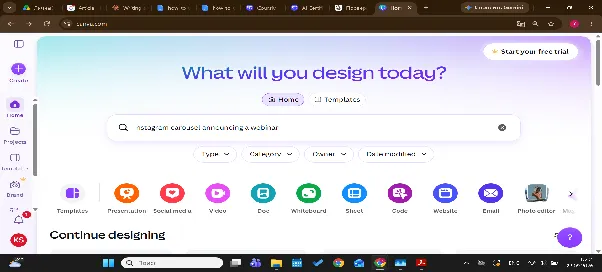
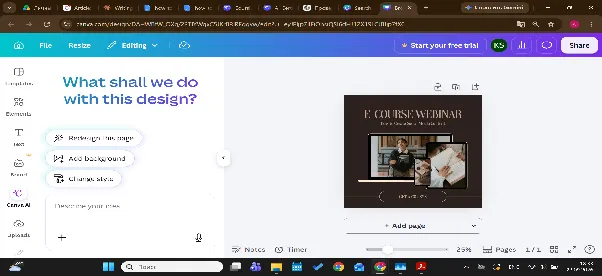
You have two starting points. Starting from a prompt works when you already know the format – “Instagram carousel announcing a webinar” and want Canva to fill in a rough layout you’ll then edit. Starting from a template works when the format matters more than originality – a resume, an invoice, a certificate – and you want AI only for the text or the image inside it. Neither is “more correct” – pick based on how much of the design already exists in your head.
Writing with Magic Write
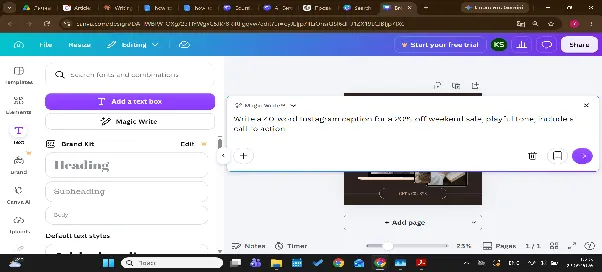
Magic Write lives inside text boxes across Canva Docs, Presentations, Whiteboards, and regular designs. Highlight any text box, or an existing line, and a Magic Write prompt appears. Give it a topic and a tone – “write a 40-word Instagram caption announcing a 20%-off weekend sale, playful tone” and it drafts several lines you can accept, edit, or regenerate.
Three controls do most of the work:
- Length: tell it “in two sentences” or “under 60 words” rather than trimming manually afterward.
- Tone: name it directly – formal, playful, urgent since vague prompts produce generic copy
- Iteration: use the rewrite, shorten, and “make it more fun” options on existing text instead of writing a new prompt from scratch each time
What Magic Write is bad at: anything requiring current facts, statistics, or names you haven’t fed it. It writes fluent copy, not verified copy, so numbers, dates, and claims need a human check before publishing – the tool has no way to confirm they’re current.
Images and video with Dream Lab / Magic Media
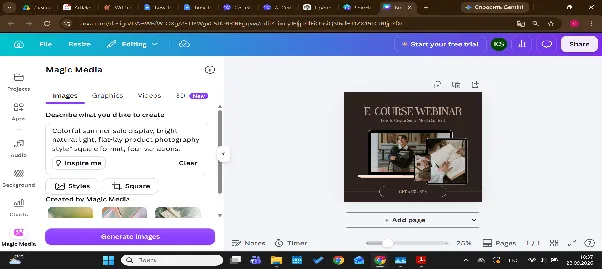
Canva Dream Lab is Canva’s text-to-image and text-to-video generator, sitting inside the Magic Media panel. Describe an image – subject, setting, lighting, style and it returns several options in a chosen visual style (photorealistic, watercolor, concept art, and similar). Video generation from a text prompt works the same way, for short clips rather than long-form footage. Used as a Canva AI image generator, it covers most everyday visual needs – social graphics, presentation art, blog headers without leaving the editor.
Three prompting habits change the output more than anything else:
- Name a concrete style, not just a subject: “gourmet pasta dish on a wooden table, natural light, food-photography style” beats “pasta”
- Specify the format upfront (square, vertical, widescreen) so you’re not resizing an awkward crop afterward.
- Generate three or four variations before picking one – the first result is rarely the best.
When not to reach for it: never generate images of real, identifiable people, logos, or trademarks – Canva’s terms restrict this, and it creates rights problems even if the output looks convincing. For anything approaching photorealism at a professional bar (hero images, print ads), Dream Lab’s output tends to sit below dedicated image generators. Our Top AI Image Generators in 2026 covers where those tools outperform it. For product photography of a real item you own, edit an actual photo instead of generating one.
Designing from a prompt with Magic Design
Magic Design takes a written brief or an uploaded photo and returns a handful of complete layouts, not just a blank canvas with suggestions. Type something like “Facebook post promoting a summer discount, orange and cream color palette” and you’ll get several ready-to-edit variants within seconds.
It works best as a starting point, not a finish line: pick the layout closest to what you want, then swap in your own copy, photos, and colors rather than accepting the first draft wholesale. If none of the options fit, narrowing the prompt – naming a specific mood, palette, or reference usually does more than regenerating from the same vague brief.
Editing photos: erase, grab, expand, and background
Canva’s photo-editing AI tools sit together under Edit Photo, and each solves a different problem:
- Magic Edit replaces or adds an object using a text description – select an area, describe the change, and the AI redraws it.
- Magic Eraser removes something unwanted (a stray object, a background element) by brushing over it.
- Magic Grab lifts an object out of its background so you can move, resize, or duplicate it within the same photo.
- Magic Expand stretches a photo’s background outward, useful when a good image is the wrong shape for your layout.
A background remover rounds out the set for isolating a subject entirely. None of these tools invent facts, so the risk is lower than with text or image generation, but check the result for warped edges or repeated patterns before publishing, since AI can misjudge complex backgrounds. Our guide on How to Use AI to Edit Photos walks through each of these in more detail if you’re editing photos regularly.
Resize and repurpose with Magic Switch
Magic Switch takes one finished design and adapts it into other formats or languages without you rebuilding it from scratch. A single Instagram post becomes a Story, a Pinterest pin, and a Facebook cover in one pass. A design can also be translated into another language while keeping its layout.
It’s a repurposing tool, not a redesign tool – check spacing and cropping on each output, since a layout built for a square doesn’t always translate cleanly to a vertical Story. Treat the results as a fast first pass, then adjust anything that looks cramped or off-center.
Presentations and documents with Canva AI
Inside Canva Presentations, Magic Write can turn a topic or an outline into full slide content – headlines, bullet points, speaker notes which you then arrange with Canva’s layout tools. Canva Docs works the same way for longer text: outlines, first drafts, and summaries of existing text.
This is meant to skip the blank-page stage, not to replace slide design entirely. For a broader look at building whole decks with AI rather than one feature at a time, see our piece on How to Use AI to Make a Presentation and our roundup of Best AI Presentation Makers in 2026 if Canva isn’t the only tool you’re considering.
Keeping AI output on-brand
A Brand Kit is what keeps AI-generated text and images from looking generic. Once you’ve set your logo, color palette, and fonts, Magic Design and Magic Switch apply them automatically to new layouts, and Magic Write can draw on a saved brand voice profile so tone stays consistent across posts written weeks apart. Without a Brand Kit, every AI output starts from Canva’s own defaults, which is where a lot of “AI-generated” visual sameness comes from.
Worked example: one campaign in about 30 minutes
Say you’re promoting a weekend sale and need a social post, a Story, a flyer, and three slides for a short pitch.
- Draft the copy (5 minutes). Prompt Magic Write: “Write a 40-word Instagram caption for a 20%-off weekend sale, playful tone, include a call to action”. Rewrite once for length.
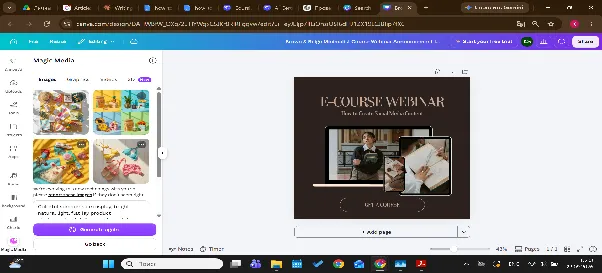
- Generate a hero image (5 minutes). In Dream Lab, prompt: “Colorful summer sale display, bright natural light, flat-lay product photography style, square format, four variations”.
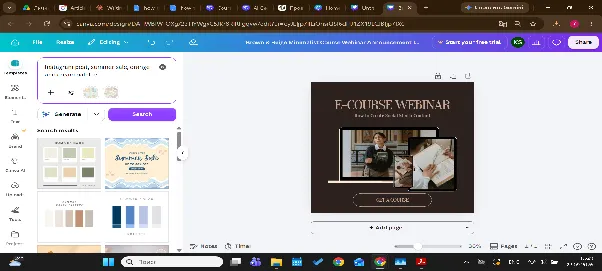
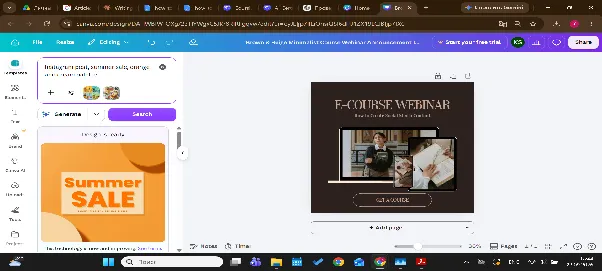
- Build the post (5 minutes). Feed the image and copy into Magic Design with the brief “Instagram post, summer sale, orange and cream palette”. Pick the closest layout and swap in your Brand Kit colors.
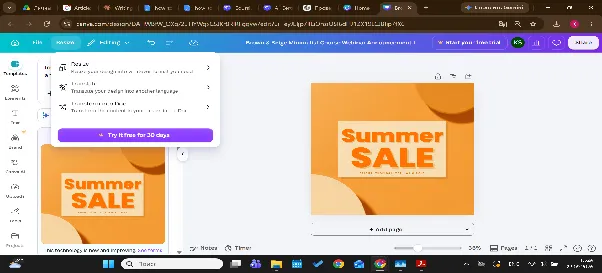
- Repurpose (5 minutes). Run the finished post through Magic Switch to generate a Story and a flyer format. Check cropping on each.
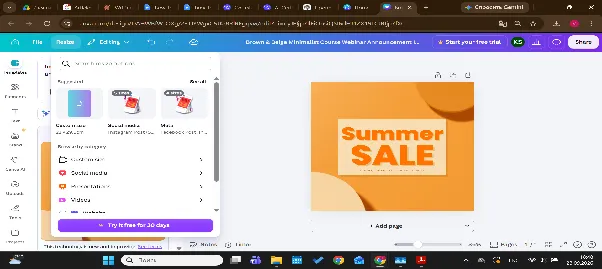
- Build the pitch slides (10 minutes). In Presentations, prompt Magic Write for three slide outlines on the sale’s numbers and timeline, then apply your Brand Kit template.
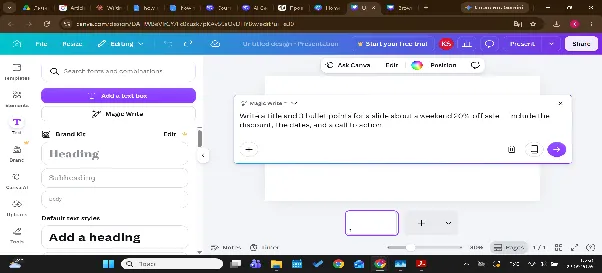
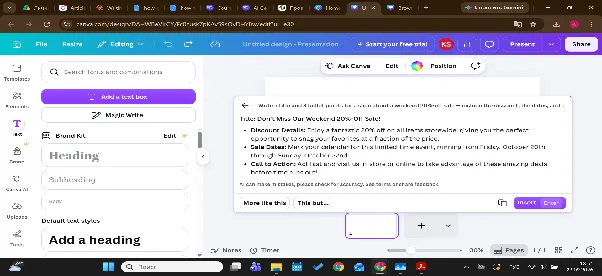
That’s four deliverables from one initial prompt and one image generation, with human edits at every handoff point.
A 15-minute weekly Canva AI routine
It is worth mentioning that you don’t need a full campaign to get value from these tools every week. A short, repeatable routine covers a week of content in about 15 minutes:
- Batch the captions (3 minutes). One Magic Write prompt, naming the week’s 3-5 posts and a shared tone, drafts all the captions at once, then edit each individually.
- Batch the visuals (5 minutes). Run each caption’s topic through Dream Lab with a consistent style keyword (e.g., “flat-lay, natural light”) so the week’s images feel like a set, not five unrelated generations.
- Assemble with Magic Design (4 minutes). Drop each caption and image into Magic Design with your Brand Kit applied, so layouts stay consistent without manual formatting.
- Resize with Magic Switch (3 minutes). Push the finished posts through Magic Switch once to generate the Story and secondary-platform versions for the week.
Repeating this weekly keeps a feed consistent without redoing the brand-voice and style decisions from scratch each time.
Limits and rights: what to check before you publish
- Free vs. paid: Magic Write and Magic Media both work on the free plan with a capped number of generations; Magic Grab, Magic Expand, and Magic Switch are generally reserved for paid plans. Caps and availability change, so confirm current limits in your own account rather than relying on a fixed number.
- Commercial use: Canva’s terms govern what you can do with AI-generated text and images commercially, and those terms are updated periodically – read the current version before using AI output in paid client work or a commercial product. Our article on Who Owns AI-Generated Images? covers the general principles.
- People, logos, and trademarks: don’t generate images of real, identifiable people, brand logos, or trademarks – this sits outside Canva’s permitted use and creates rights exposure regardless of how the image is used afterward.
- Accuracy: AI-written text can state something confidently and incorrectly. Fact-check any number, date, or claim before it goes live.
Common mistakes to avoid
- Vague prompts. “Write something about our sale” produces a generic copy. A prompt with a length, tone, and specific detail produces a usable copy.
- Publishing the first draft. Both Magic Write and Dream Lab are meant to be iterated on, not accepted outright.
- Skipping the Brand Kit. Without it, every AI output defaults to Canva’s generic style, and a feed built that way looks interchangeable with everyone else’s.
- Treating AI text as fact-checked. It isn’t – verify anything specific before you publish.
- Generating people or logos. This is the fastest way into a rights problem, and it’s avoidable by editing a real photo instead.
Brief yourself once, use it everywhere
Every one of the Canva AI tools covered above only performs as well as the prompt behind it – a vague brief produces generic text and generic images in Canva just as it does anywhere else. Learning to write a clear AI brief once means it carries over to every tool you touch, not just this one. See our guide on How to Write Better AI Prompts for the underlying skill.
If you want to go deeper than one article can cover, Coursiv’s AI Certificate Program builds the same brief-writing skill across every AI tool you use, Canva included – start the program or see the AI Certificate Program for the full curriculum.