Already paying for Claude, but still copying text between tabs? Or spending more time moving information into forms and spreadsheets than using it?
Claude in Chrome is Anthropic’s browser extension that can read webpages and act on them. It works with Pro, Max, Ultra, Team, and Enterprise plans, subject to organization controls.
To use it:
- Install Anthropic’s Claude extension from the Chrome Web Store.
- Sign in to your Claude account.
- Pin the extension to Chrome’s toolbar.
- Click the Claude icon to open the side panel.
- Check the permission mode before your first task.
Below: more detailed setup, 9 tasks to try, limits, and how to use it safely.
By the way, if you want to explore Claude’s features in more depth and get more from your paid plan, take a look at our 28-Day AI Certificate Program. Our platform includes courses on Claude and other AI tools, with short lessons and built-in practice that fit into a busy schedule and help you keep building your skills as AI evolves.
Claude in Chrome at a glance
| Question | Current answer |
|---|---|
| What is it? | The Claude in Chrome extension brings page reading and browser actions into your workflow. |
| Which plans? | Pro, Max, Ultra, Team, and Enterprise. Admin restrictions can apply. |
| Which operating systems? | OS-version minimums are not stated in Anthropic’s extension setup guide. |
| Why might my panel look different from the screenshots in this article? | Anthropic is updating the extension’s side panel. Some accounts show the updated layout; others still show the older version. On Enterprise plans, an admin needs to enable the newer panel. |
Last verified: October 29, 2026 (official documentation).
For plan differences consult the Claude pricing guide alongside Anthropic’s live pricing page.
If you’re using Claude for the first time, start with our Claude beginner guide to learn the basics before setting up the extension.
What Claude in Chrome can and can’t do
Anthropic documents the following browser capabilities and restrictions.
What it can do
- Read and summarize webpages.
- Click, type, fill forms, and navigate between pages.
- Compare grouped tabs and extract details into a table.
- Save prompts as shortcuts and schedule recurring browser tasks.
What it can’t do
- Make purchases or financial transactions.
- Create accounts or permanently delete emails and files.
- Handle sensitive credit card or ID data, or bypass CAPTCHAs.
Note: Anthropic prohibits Claude from performing the actions listed above, even with your permission.
Safety limitation: Claude cannot guarantee protection from prompt injection or unintended actions.
How to install and set up Claude in Chrome
- Install the official extension. Find the listing named Claude, with Anthropic as the developer and claude.com as its website. Select Add to Chrome and review the installation permissions. If you searched for Claude for Chrome, check the publisher before installing a similarly named tool.
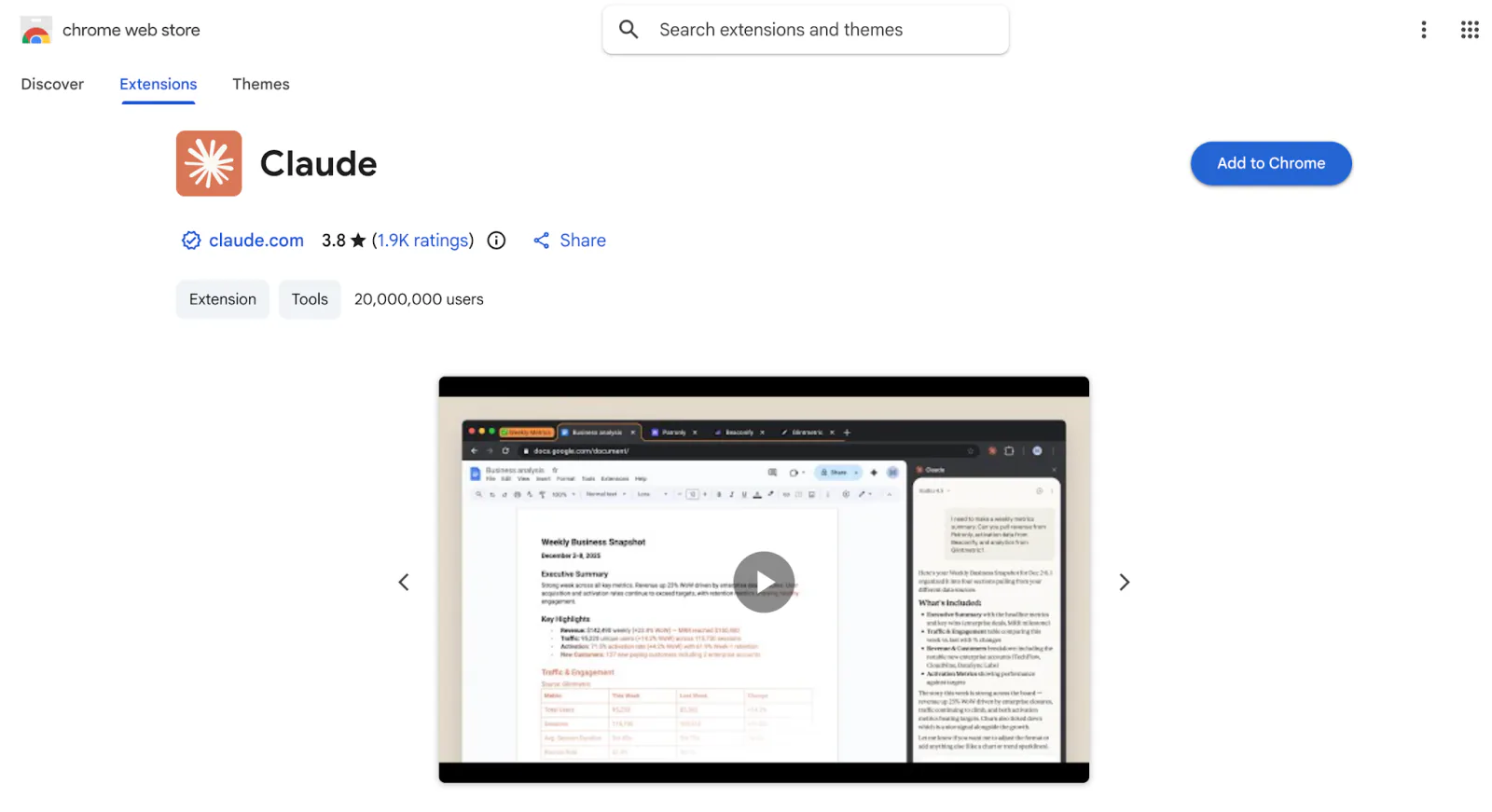
Screenshot: Claude in Chrome (Anthropic), Chrome Web Store.
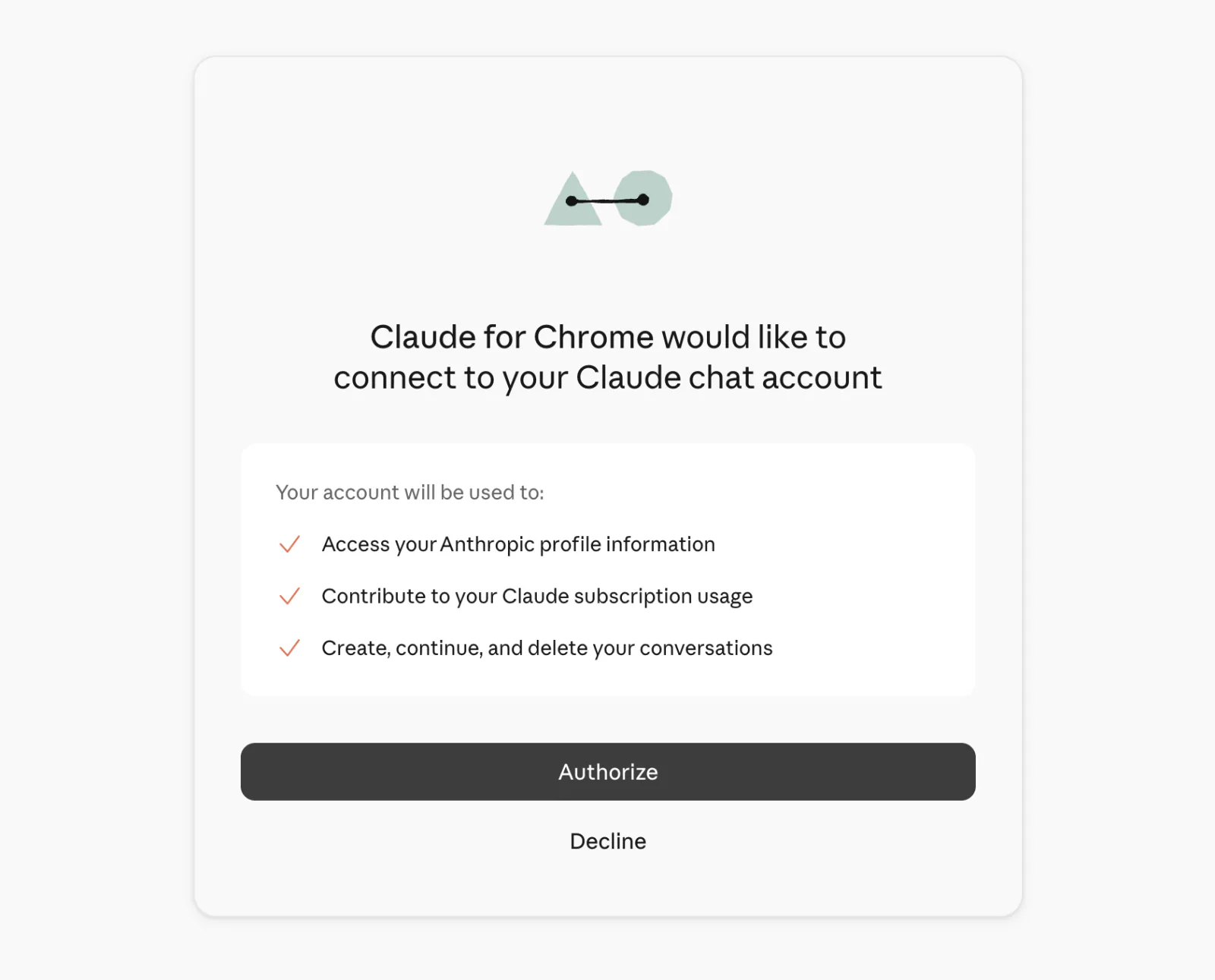
Screenshot: Claude in Chrome (Anthropic). The account-connection screen lists the access requested by the extension.
- Connect your Claude account. Sign in to your eligible paid Claude account if prompted. On the account-connection screen shown above, review the requested access and select Authorize to connect the extension. Team and Enterprise members may need their administrator to enable access.
- Pin and open it. Click Chrome’s puzzle-piece Extensions icon, then the thumbtack beside Claude. Click the toolbar icon to open the panel.
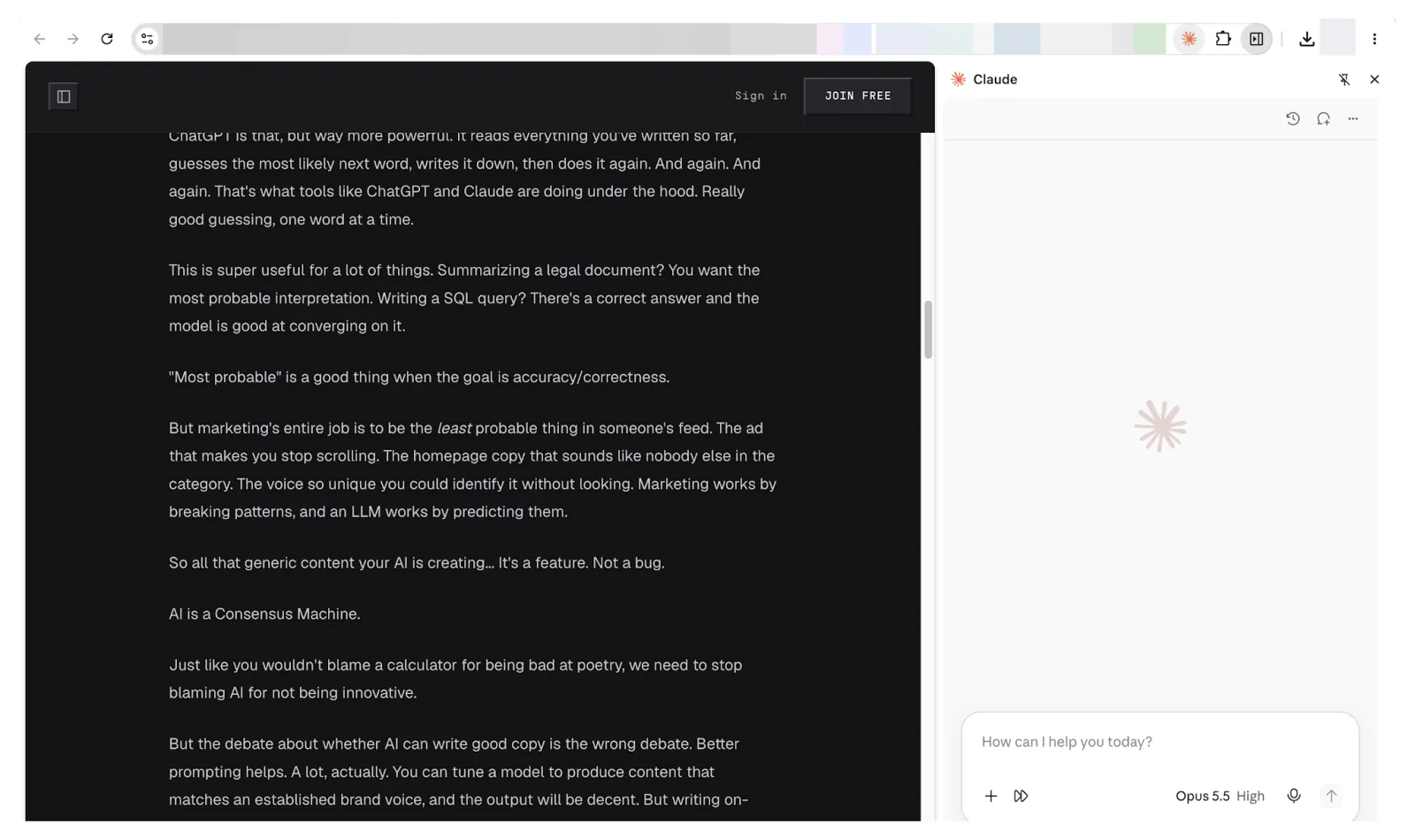
Screenshot: Claude in Chrome (Anthropic). The side panel is open beside the webpage.
Note: When you open the panel, Chrome creates a tab group for Claude and adds the current tab. Drag other tabs into this group to let Claude compare their pages or gather information across them.
- Choose the permission mode. Open the permission-mode menu beside the message box and select Manual for your first task. The screenshot below shows Auto selected; switch to Manual if you want approval prompts before new tools or sites are used. The next section explains the modes in more detail.
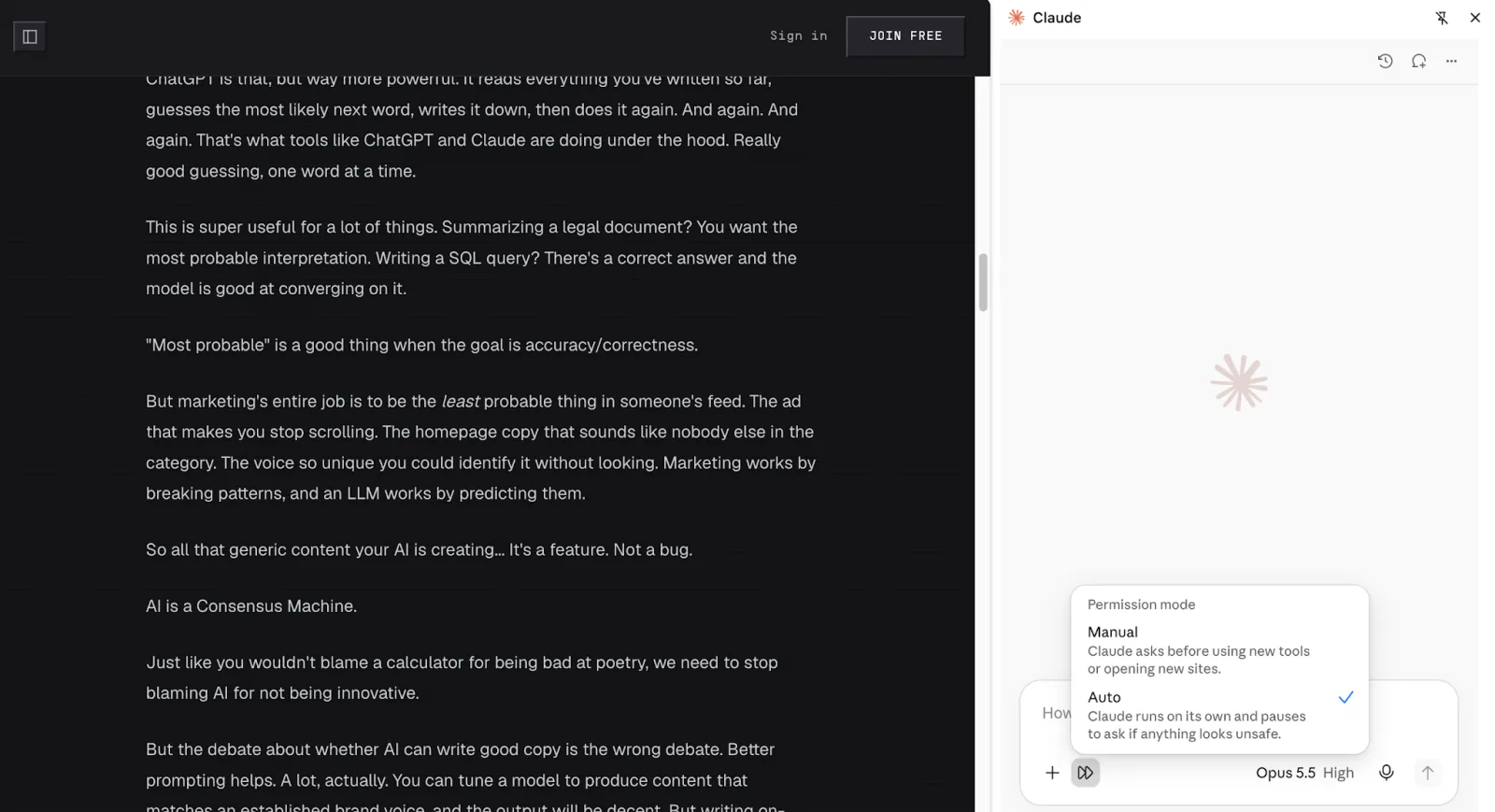
Screenshot: Claude in Chrome (Anthropic). Auto is selected in this example; Manual is the other visible option.
- Try one read-only request. Open a public page, such as an article or product page, and ask for a short summary. Check it against the page before trying a task that changes anything.
Summarize this page in five bullets. Include the main caveat and tell me which section it comes from. Don’t follow links or change anything.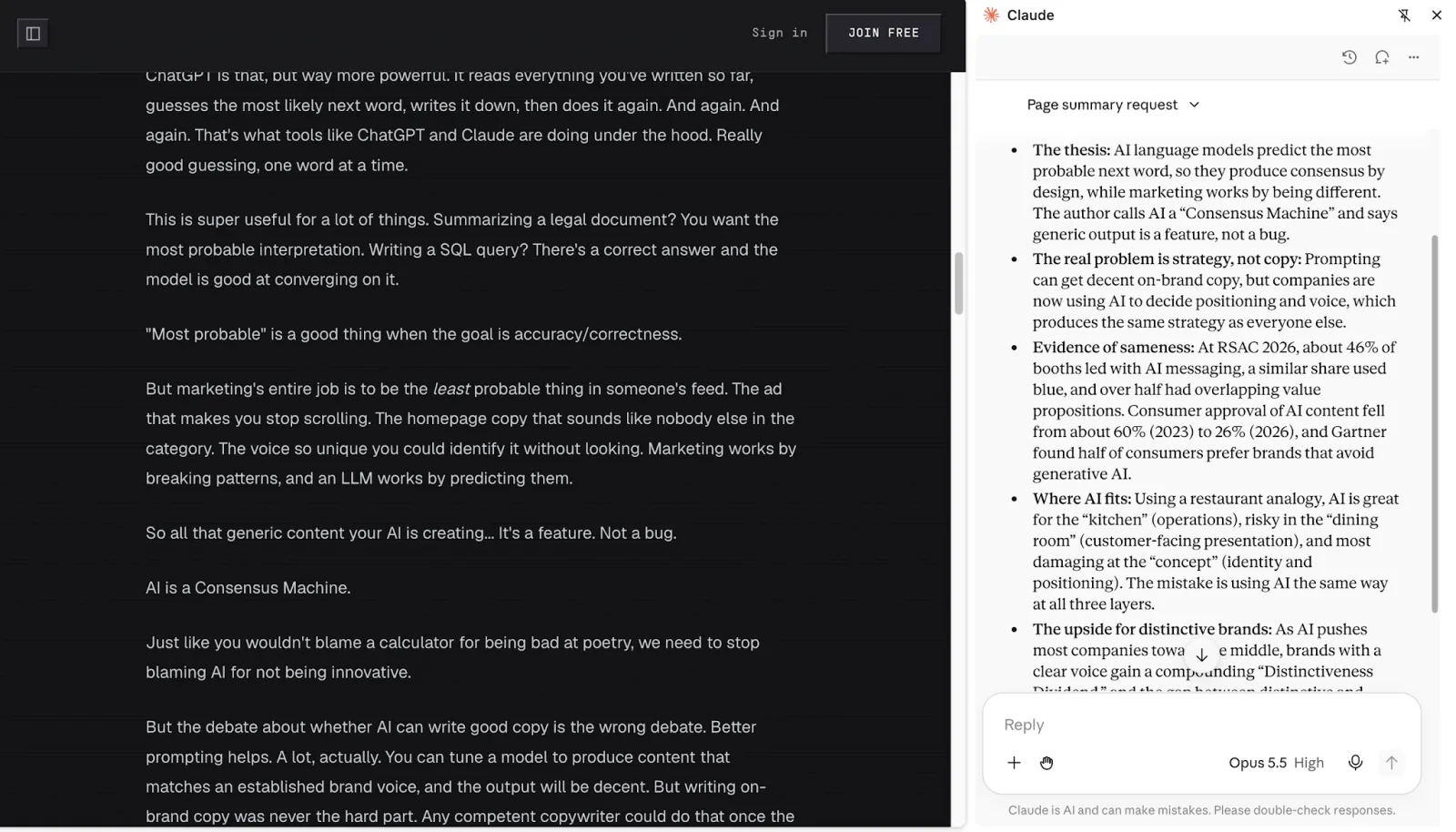
Screenshot: Claude in Chrome (Anthropic). A page summary appears in the side panel beside the source text.
Setting permissions and minimizing risks
The menu shown above has Manual and Auto. Choose how closely you want to supervise Claude’s work:
| Mode | What you do in practice |
|---|---|
| Manual | Use this when you want to supervise the task closely. Review Claude’s requests to use tools or access sites, then choose whether to allow them. Claude waits for your decision when approval is required. |
| Auto | Claude handles routine steps without asking you each time. If its safety checks flag a concern about an action, it blocks that action or asks for your permission before continuing. Auto is selected in the screenshot above. |
When Manual pauses to ask whether Claude can act on a website, you can decide how much to approve. Your choice determines whether Claude asks again for later actions on that site:
- Allow this time only: approve the requested action. Claude asks again before the next action that needs approval.
- Allow all for this website: grant ongoing permission for that site. Claude can then take multiple actions there without asking you each time, even while you stay in Manual.
For example, if you allow ongoing access to a retailer’s website, Claude can browse several product pages there without asking before each click. That permission does not extend to a different retailer’s site. Downloads, potentially sensitive input, and authorizations still require approval, and some sites require approval for every action regardless of mode.
Note: Anthropic also documents Skip all approvals, a mode without approval pauses or automatic action checks. It is not shown in our extension menu, and Anthropic does not explain its availability in this interface.
Regardless of permission mode, Claude extension will ask for permission for authorizations, potentially sensitive input, permission changes. Though Anthropic doesn’t guarantee that mistakes are impossible.
Beyond Claude’s own mistakes, prompt injection poses another risk: a page or email can contain instructions that try to redirect Claude, perhaps toward an unrelated site or data transfer. Anthropic’s defenses reduce that risk without eliminating it. The prompt-injection guide explains the mechanism in more detail.
Given these risks, avoid using the extension on pages containing sensitive information. Claude takes screenshots of the tabs it works in, so visible information can become part of the conversation even when your request sounds harmless.
Use this checklist before a task:
- Keep banking, health, credentials, and sensitive company information out.
- Choose the relevant permission mode before starting.
- Name allowed sites and the exact output.
- Before approving, check what Claude plans to do, which website or file it will affect, and who will receive any information it sends.
- For new workflows, stay nearby and check Claude’s progress while it works. Stop the task if it opens unrelated websites or requests access your task doesn’t need.
- Under three dots > Extension settings > Permissions, review websites you’ve already allowed during tasks and revoke access you no longer need.
Team and Enterprise site restrictions also apply. For broader account and data questions, read the Claude safety guide.
How to write a good browser task
Use this five-part brief:
- Goal: the decision or deliverable you need.
- Sites: the specific pages or domains to use.
- Data: the document, dates, or fields to rely on.
- Stop points: actions to leave for your review.
- Output: table columns, summary structure, and source links.
Help me [goal] using only [sites]. Use [data], and mark anything missing rather than guessing. Stop before [actions]. Return [format], with a source for each factual entry.For example, replace a broad request:
Sort out my inbox.
With a more specific task:
Look at these five demo messages. Make a table of the subject, deadline, and next action. Draft replies only where the message asks a question. Don’t send, archive, or delete anything.The stop point states what you want; permission settings and supervision still matter.
Important: After your first run, check whether using Claude saved you time, including the time you spent reviewing and correcting its work.
9 browser tasks to try with Claude Chrome extension
Try these 9 tasks to see how the extension works. Use the examples to adapt the prompts to similar tasks of your own and spot other ways Claude could help with your browser work.
1. Compare products across open tabs
Claude can compare pages in the tab group assigned to your current conversation. To set up the comparison:
- Open the first product page and open the Claude side panel there. Let Claude create its tab group.
- Open the other two product pages in the same Chrome window. Drag their tabs into the group Claude created. Check that all three tabs sit inside the same colored group.
- Return to the first product tab, where you originally opened Claude, and enter your prompt in that original side panel. Continue using this conversation after adding the other tabs.
In our test, opening Claude again from a tab added later started a separate conversation that could not see the original group’s other tabs. If this happens, return to the first tab and continue in the original panel.
Send the comparison prompt in that original panel:
Compare the three desk-lamp pages in this tab group. Make a table with price, currency, brightness, power source, warranty, and source URL. Write “not stated” for missing details. Don’t add anything to a cart.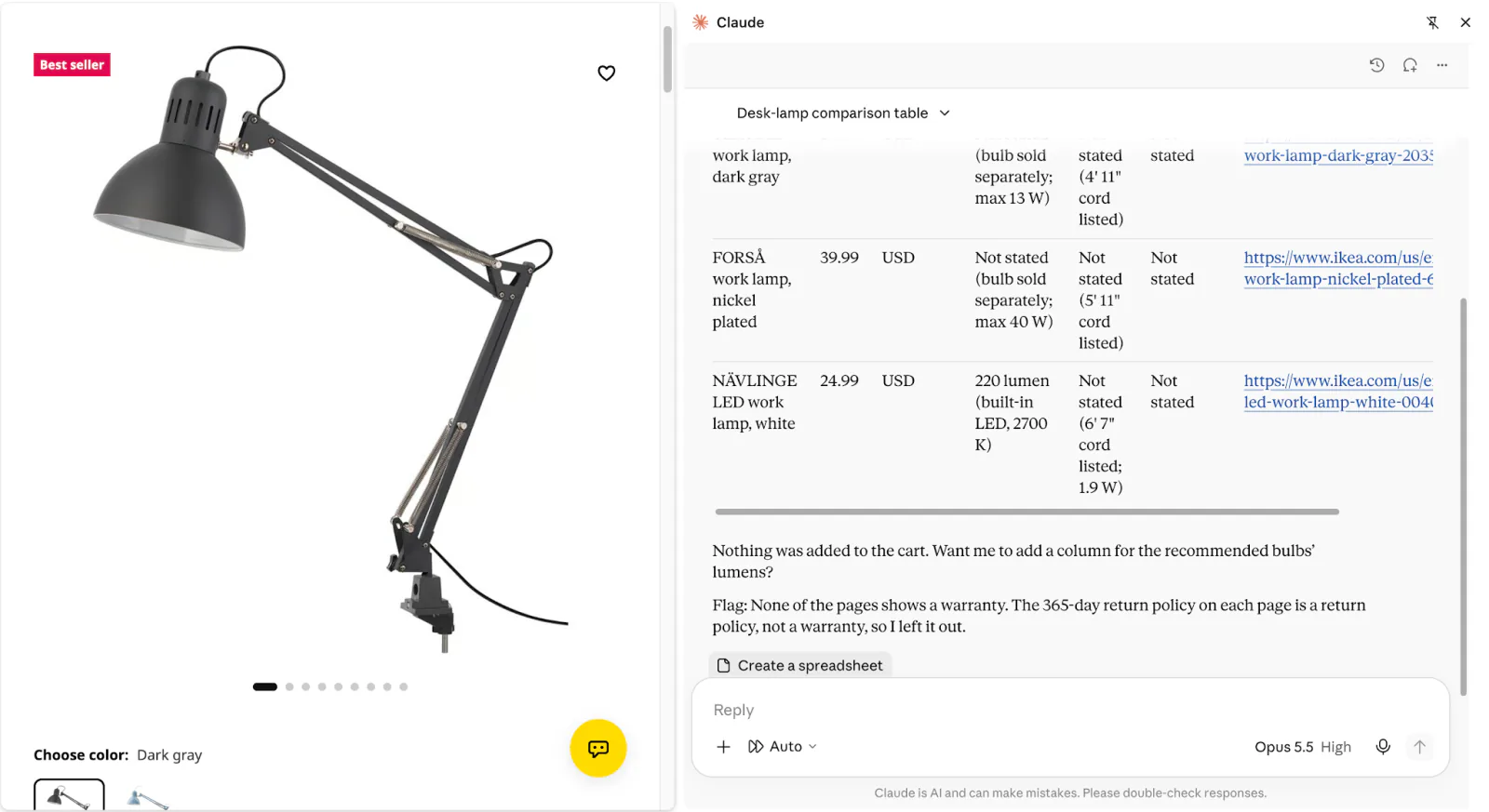
Screenshot: Claude in Chrome (Anthropic). The comparison table includes source links and marks missing details as “not stated.”
In our test, Claude returned the table in the side panel and offered Create a spreadsheet below it. Review the comparison first, then decide whether you need a spreadsheet.
Check the price and your deciding specification on each source page. Watch for assumptions such as treating USB power as proof of a rechargeable battery.
If you already have a comparison sheet in progress, open it in the same Claude tab group as the product pages. Ask Claude to fill the missing cells in a specific cell range and preserve existing entries and formulas. Check the updated cells against the source pages.
2. Fill a long form from a document
The extension supports form filling. Open a fictional company profile and an unsent demo intake form in the same Claude tab group.
Fill this demo intake form using the company profile in the other tab. Copy names, dates, and numbers exactly. Leave unknown fields blank and list them for me. Stop before Submit or accepting terms.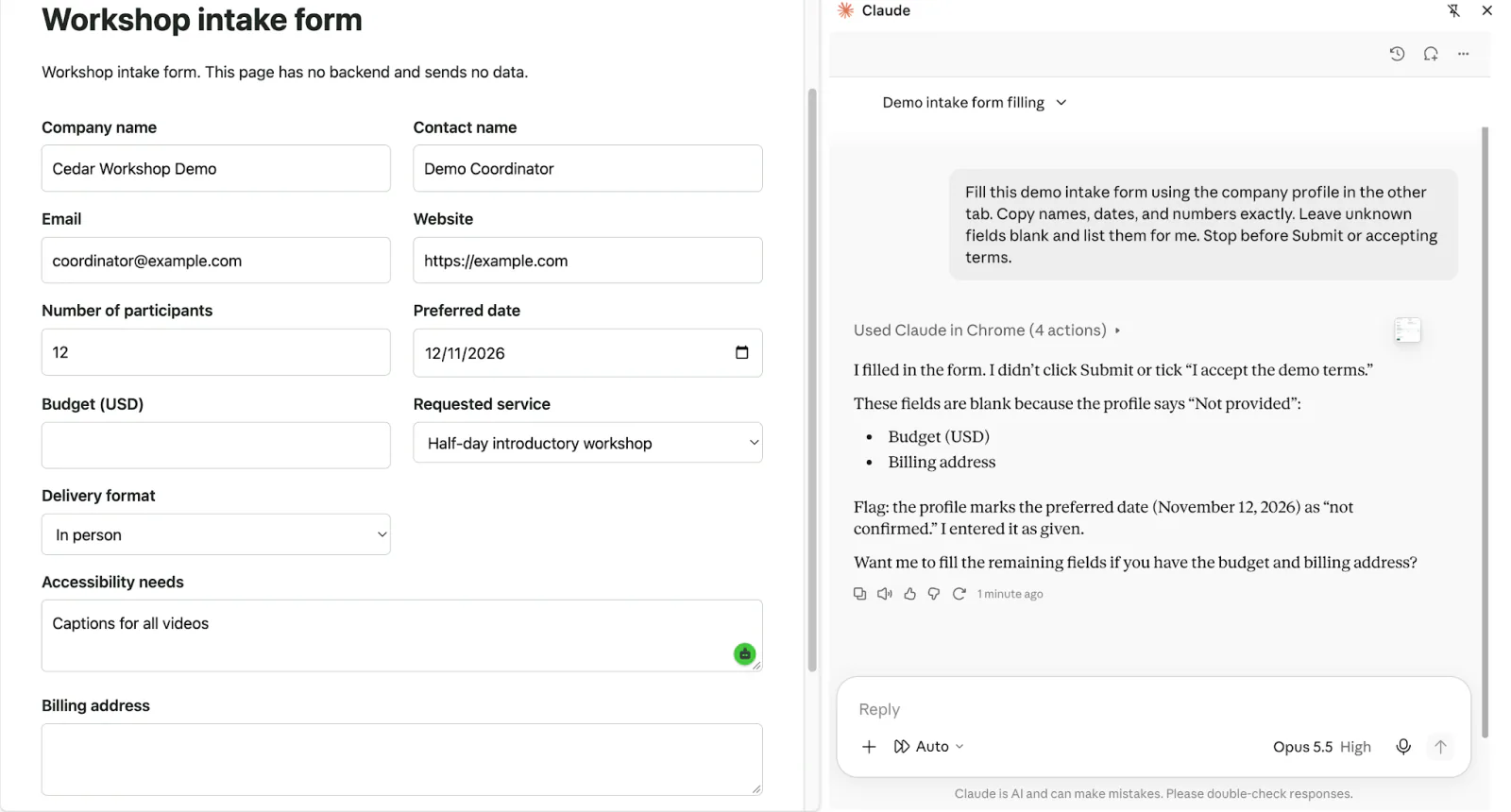
Screenshot: Claude in Chrome (Anthropic). The demo form contains the supplied details, while budget and billing address remain blank.
Compare populated fields with the profile. Check especially dates, units, and dropdown choices; a correct-looking selection can still mean something different.
Another idea: ask Claude to copy details from a PDF invoice into a draft invoice form in your CRM. Review the copied fields before saving or sending the invoice.
3. Analyze performance data in an online dashboard
Open a dashboard you already use and ask Claude to read the figures, compare results, and suggest what to explore next. This is especially useful when the app has no Claude connector, or its connector doesn’t provide access to the data you need.
For example, you could review your LinkedIn post analytics without copying each post’s statistics into a chat. Use a dashboard without sensitive customer or company data.
Look at my LinkedIn post analytics for the last 90 days. Make a table of the three posts with the most impressions, their dates, and their impression counts. Tell me what those posts have in common and suggest three ideas for future posts. Use only the analytics available here. Don’t publish or edit anything, and tell me if any figures are unavailable.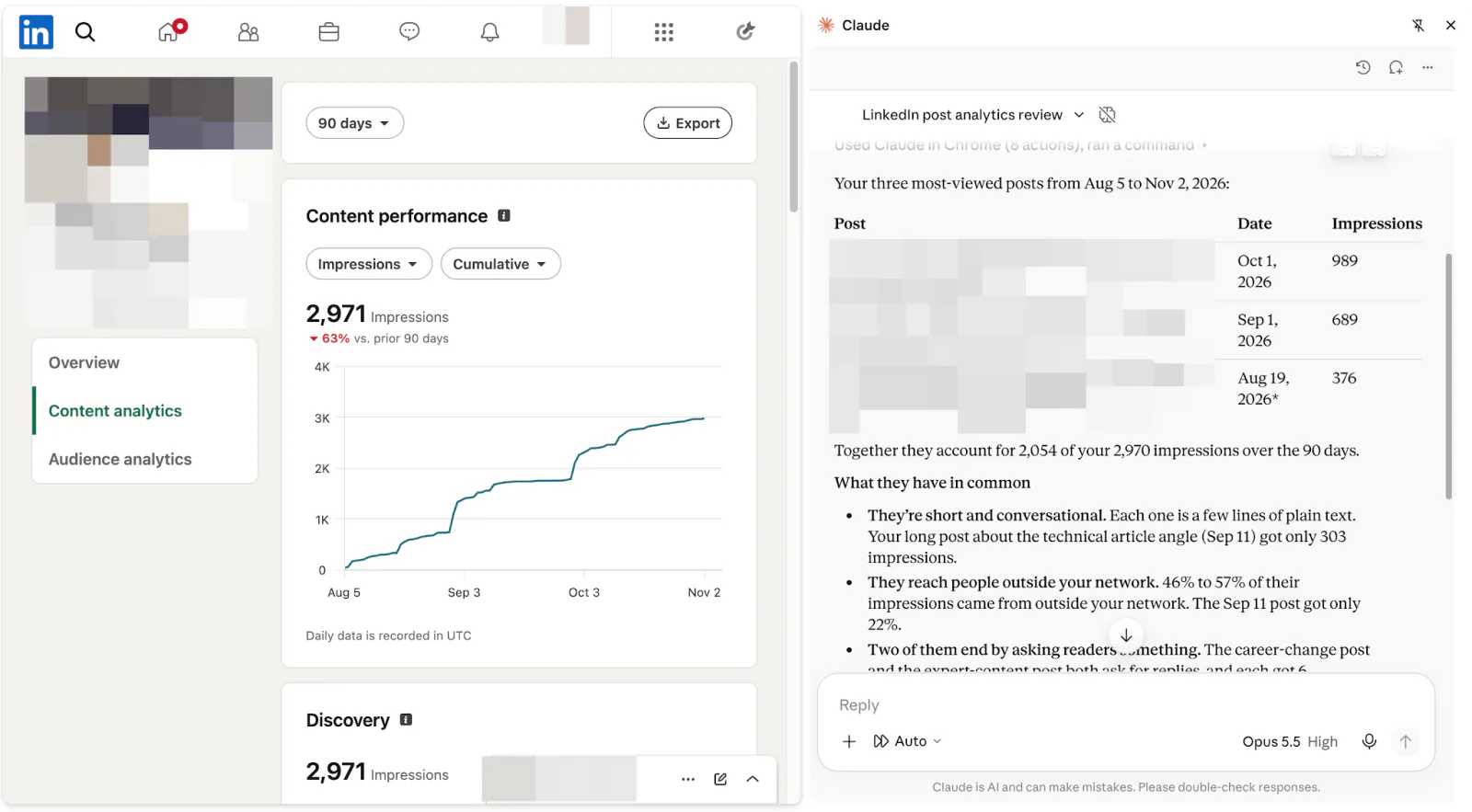
Screenshot: Claude in Chrome (Anthropic). Claude reviews post performance beside LinkedIn’s analytics dashboard, with a 90-day period selected.
Check the date range and the figures for the three selected posts. Treat Claude’s explanation of why they performed well as a hypothesis to test with future posts.
4. Repeat an update across pages or settings
Give Claude a specific change to repeat in a web app. For example, ask it to add the same call to action to several article drafts in your content management system (CMS). Open the draft list and provide the exact text and where it belongs.
Add “Want more practical tips? Subscribe to our newsletter.” at the end of the five article drafts whose titles begin with “Demo”. Add it to the first draft, save it, and stop so I can check the placement. Leave the rest of the text unchanged. Skip any draft that already has this sentence, and don’t publish anything.Check the first draft before asking Claude to continue with the remaining four. Ask for a list of the drafts it changed or skipped so you can review exceptions.
The same approach can apply to a series of settings in a web interface. For example, a sound engineer described using Claude in Chrome to configure communication channels from a supplied routing table. For your own task, provide the exact values and field names, then check one completed item before repeating the changes.
5. Summarize a long page or thread
Open a long community discussion. For this example, I’m using the Hacker News thread “Ask HN: What are you reading?”, where participants share books they are reading and discuss what they liked or disliked.
I will ask Claude to organize the recommendations so I can choose which books and comment threads to explore.
Summarize this Hacker News discussion in 200 words. Group the book recommendations by topic. Include titles, authors where stated, why people recommend them, and any contrasting opinions. Link to supporting comments. Use only this discussion, without following external links. Tell me if you could read only part of it.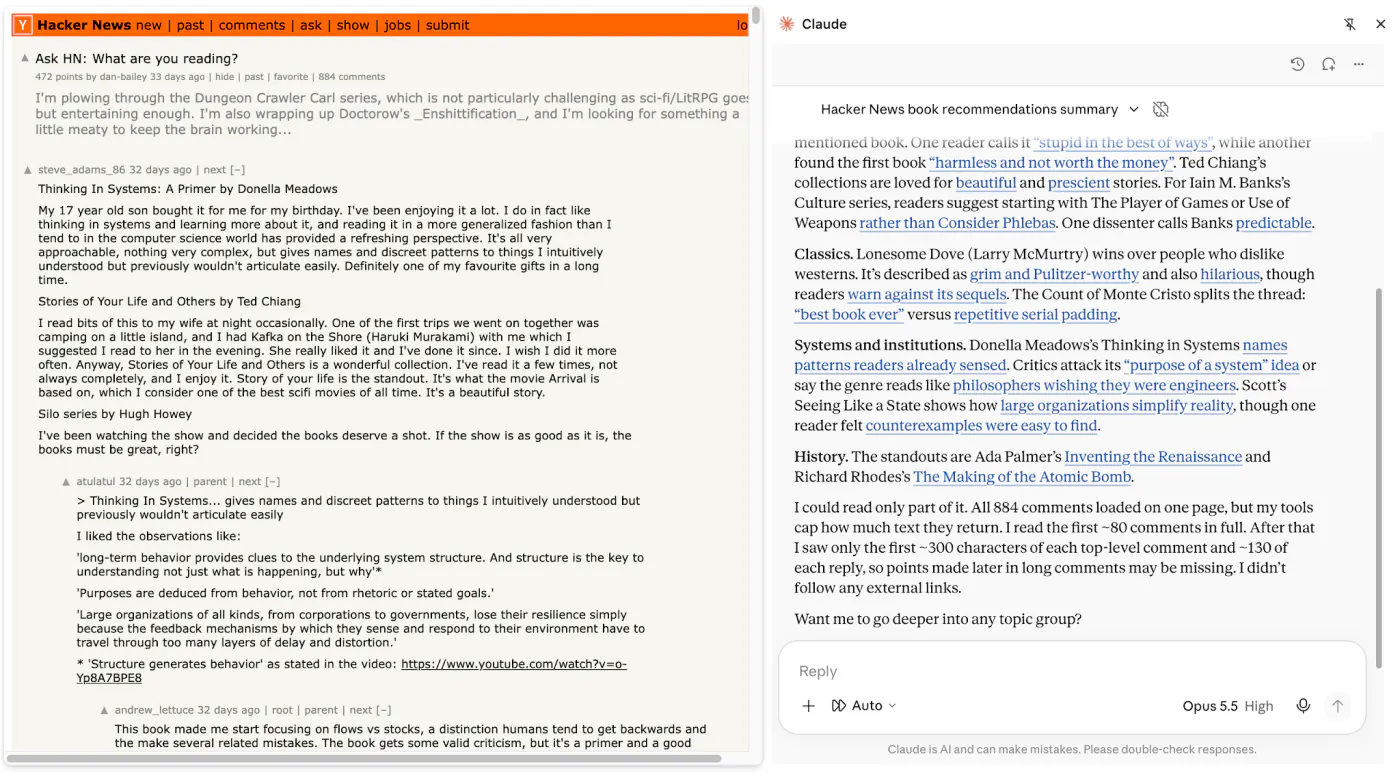
Screenshot: Claude in Chrome (Anthropic). Claude groups book recommendations by category and links to supporting comments.
In this run, Claude reported that it could read only part of the discussion. Treat the summary as a selection of recommendations rather than a complete account of all 884 comments.
Note: If you’re summarizing a work discussion with decisions, deadlines, or assigned tasks, double-check those points against the original page or comments before acting on them. Make sure a suggestion hasn’t become a confirmed decision in the summary.
6. Build a shopping cart from a list
Open an online store and your shopping list in the same Claude tab group. Open an online store and your shopping list in the same Claude tab group. If you have a preference on pack size or brand, include that too. You want to give Claude enough information that it can pick out items that suit your needs.
Use the grocery list in the other tab to add items to my cart in this store. Match the quantities and pack sizes on the list. Ask me before substituting an item or choosing a different size. Leave anything already in the cart unchanged. When you’re done, list what you added and anything you couldn’t find. Don’t check out.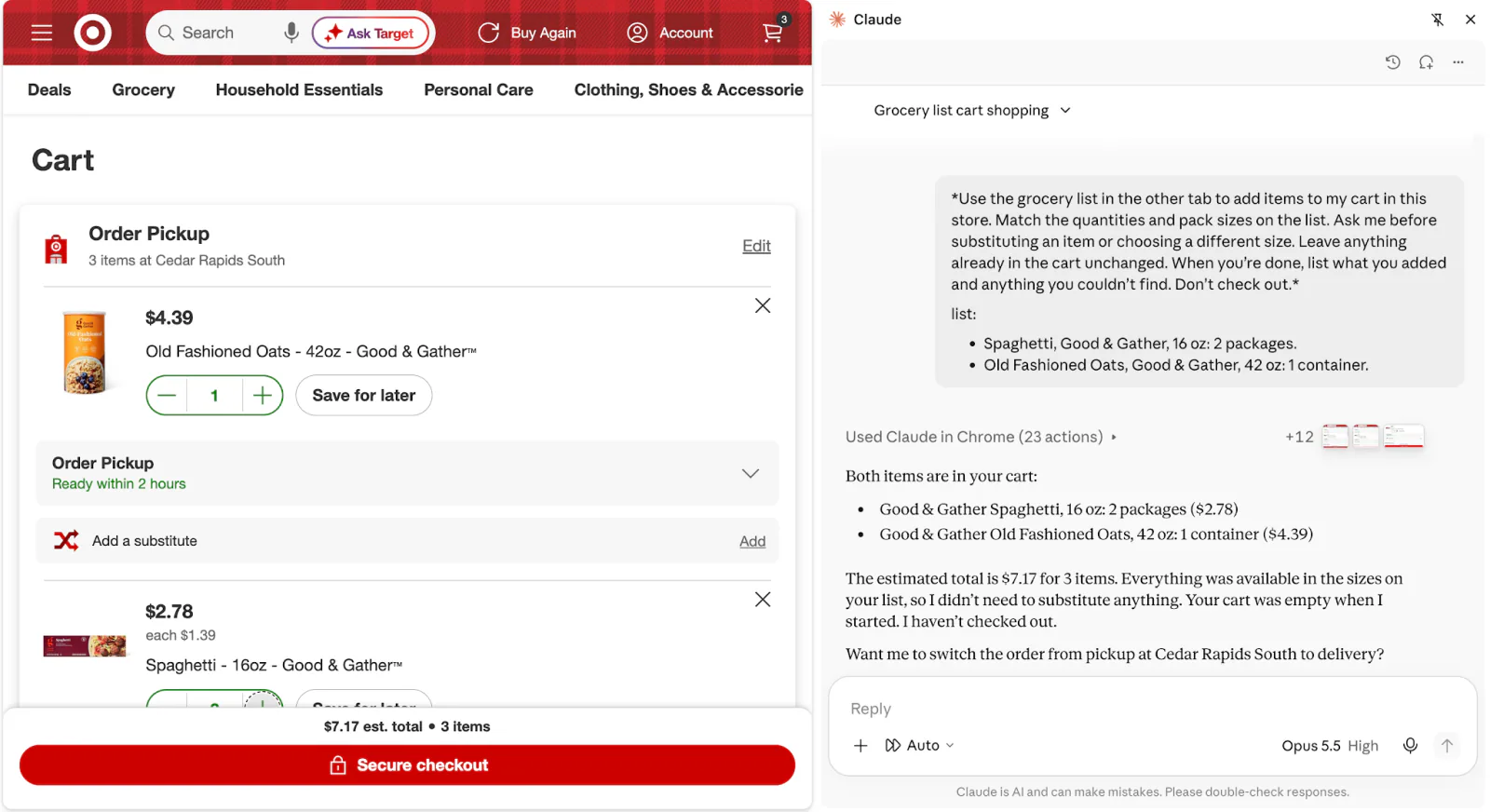
Screenshot: Claude in Chrome (Anthropic).
Review quantities, pack sizes, prices, and any substitutions in the cart. You complete the purchase yourself.
7. Edit an existing document or spreadsheet
You can instruct Claude to make a specific modification to a Google Sheets spreadsheet or Google Docs document. This can be convenient for a quick edit while you keep the file beside the conversation. For your first attempt, work on a copy, since these apps save changes automatically.
For a document, name the section and explain what you want to improve:
Go through this Google Doc and make Oxford commas consistent. Keep all wording, headings, and formatting unchanged.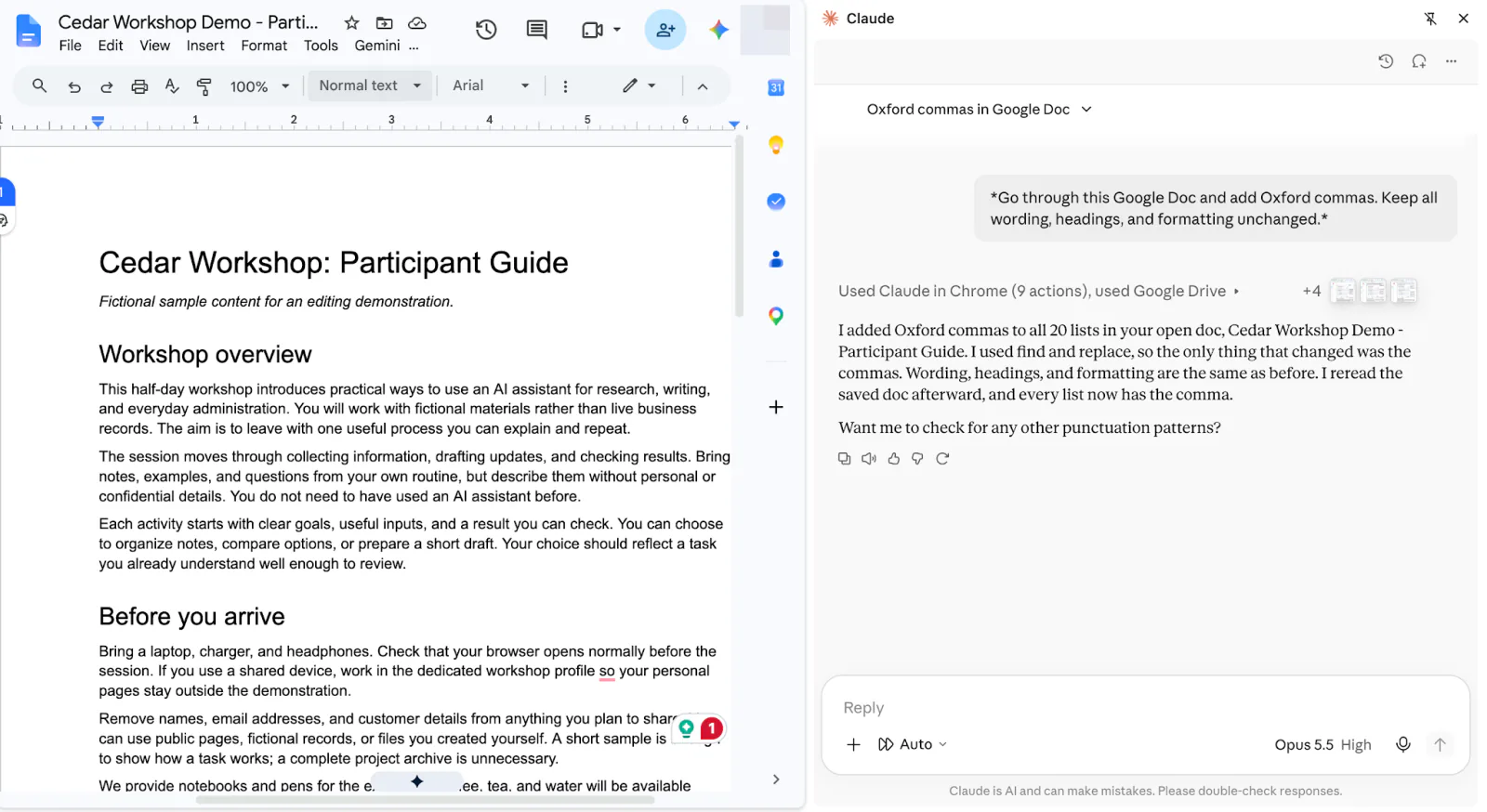
Screenshot: Claude in Chrome (Anthropic) and Google Docs (Google). In this run, Claude used browser actions and Google Drive to update punctuation in the sample document.
For a spreadsheet, specify the tab and cell range:
In this Google Sheet’s “Products” tab, turn the product names in A2:A20 into sentence case. Keep brand names and model numbers as written. Leave every other column, all formulas, and the row order unchanged. Flag any name you’re unsure about instead of changing it.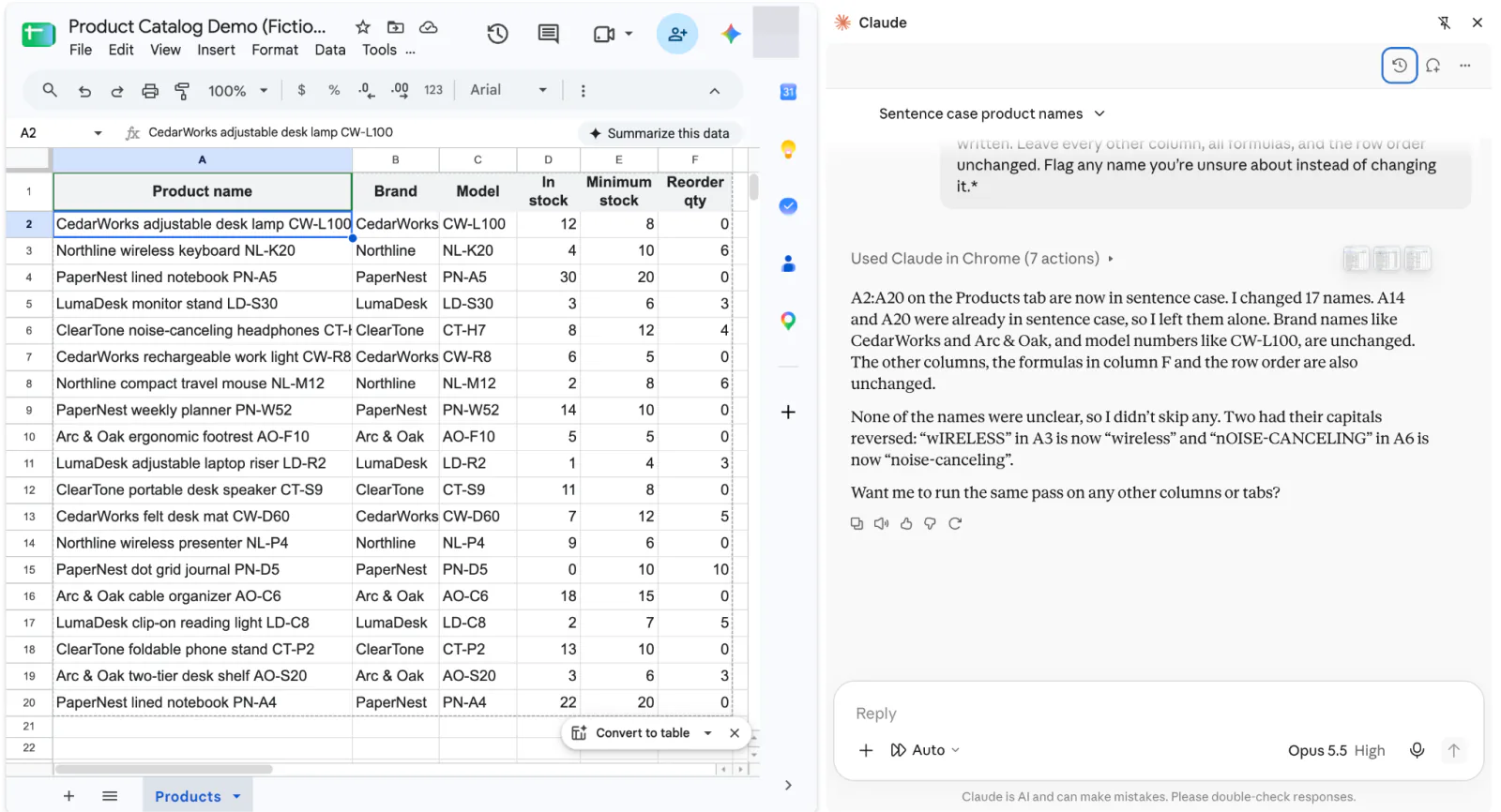Screenshot: Claude in Chrome (Anthropic) and Google Sheets (Google).
Review the edited section or cells. If Claude cannot edit part of the file through the browser, ask it to return the replacement text or values in the side panel so you can paste them yourself.
8. Check a website form before launch
Open a contact form on your demo or staging site, then open Claude’s side panel. Ask Claude to try various inputs and report back what the form returns so you can catch problems before you launch.
Try the contact form on this staging page without submitting or leaving a page. Leave a required field blank, click another field, and check whether an error appears. Enter demo@ in the email field, click elsewhere, and check whether the form flags the incomplete address. Then fill the form with Demo Visitor, visitor@example.com, and “Please send information about the workshop.” Report the steps and results, and flag anything you couldn’t test without clicking Submit.If the form only shows validation errors after submission, treat those checks as untested. Reproduce any reported issues yourself before changing the site.
9. Apply your search criteria with a shortcut
When you search across job sites, you often enter the same criteria and adjust similar filters each time. Save your instructions as a shortcut so Claude can repeat that setup on the site you have open.
For example, ask Claude to search for content writing and editing roles with fully remote work, permanent full-time employment, a minimum base salary, and no people-management responsibilities. Claude can use the filters the site provides, then check descriptions for requirements that have no matching filter.
- Adapt the criteria to your search, run the prompt on one job site, and check the filters and results.
- Open the extension settings and create a new shortcut. Paste your prompt, give it a recognizable name such as “Check job criteria,” and save it.
- On another job site, open Claude’s side panel, type /, and select the shortcut to reuse your instructions.
On the job site currently open, search for content writing and editing roles in the United States. Set the available filters for fully remote work, permanent full-time employment, and a base salary of at least $70,000 per year. I’m looking for a role with no people-management responsibilities. Tell me which criteria have no matching filter, then check the first five results against all my requirements using their descriptions. Don’t apply, send messages, create alerts, or fill in application forms.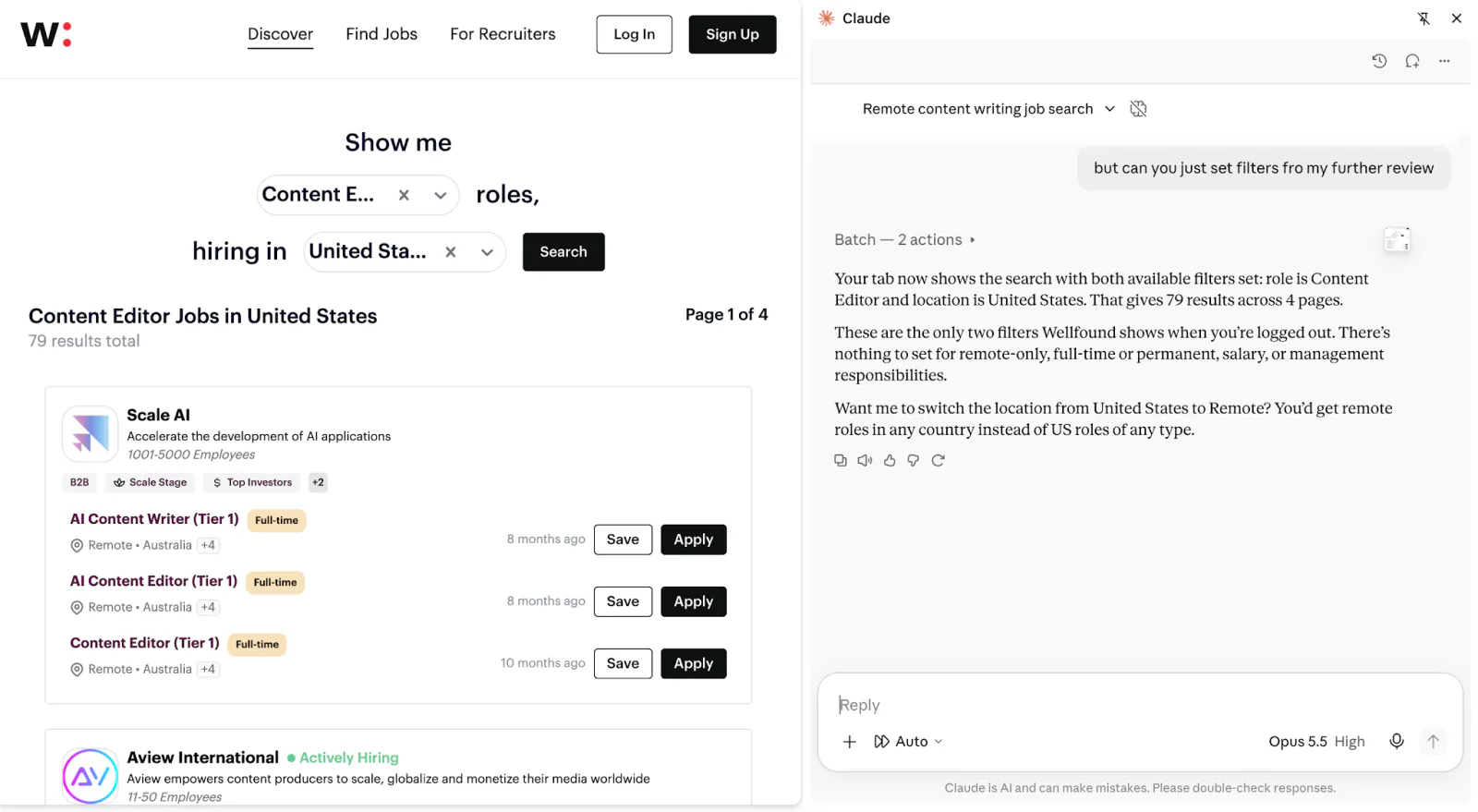
Screenshot: Claude in Chrome (Anthropic) and Wellfound.
You can adapt the same approach to accommodation or venue listings, with your own criteria saved in a separate shortcut.
Connect browser work to Cowork or Claude Code
You can also start browser tasks from Cowork or Claude Code and make the examples above part of a longer workflow. For example, you can ask Cowork to gather information from websites and turn it into a report. With Claude Code, you can ask it to change your website’s code, open the updated page in Chrome, and check that the changes work.
If you already use Claude in Chrome, Cowork keeps it as the default browser for web tasks. To check or change that choice, go to Settings > General > Preferred browser. You can choose between these options:
Chrome (Claude in Chrome) uses the extension to work in your existing Chrome session, with the accounts you are already signed in to. Choose it when the task depends on pages you already have open, such as the product tabs in the comparison example above.
Built-in browser opens a separate browser inside Claude Desktop, beside your Cowork task. Choose it when you want Cowork to open the sites it needs without using your current Chrome tabs or existing sign-ins. You can sign in separately or choose which saved logins to import. Keep Claude Desktop open and online while it works.
The Cowork guide explains how to set up longer tasks that combine browser research with work on your files.
For development, you can use the Code tab in Claude Desktop. Start a local session in your website’s project folder and ask Claude to make a change, then test it in Chrome using the extension. Specify Claude in Chrome when the task needs your existing Chrome session and signed-in accounts. Claude Code also has its own Browser pane for previews and tests, with a separate browser profile.
Use the Claude Code beginner guide for the full setup.
How Claude in Chrome compares with other AI browser tools
For tasks in your local browser, all three assistants can use open tabs and accounts you are already signed in to. Their access requirements and permission controls differ.
| Option | Access | Controls |
|---|---|---|
| Claude in Chrome | Chrome extension available on paid Claude plans. Team and Enterprise access can depend on administrator settings. | Choose Manual for more approval prompts or Auto to let Claude continue after its safety checks. When asked, approve a single action or allow future actions on that website. You can remove that saved permission later so Claude asks again. Modes are beside the chat input; site permissions are in the extension settings. |
| ChatGPT browser extension | Supports Chrome, Edge, Brave, Opera, and Vivaldi. Available on Plus, Pro, Business, Enterprise, and Edu plans, subject to rollout and workspace settings. | Allow a site once, keep it allowed for future tasks, allow all sites, or block specific domains. Review saved website permissions in the desktop app under Settings > Computer Use, which includes browser access. Select Manage next to your browser. |
| Gemini in Chrome auto browse | Built into Chrome. Experimental. Desktop auto browse on a personal account requires Google AI Pro or Ultra, age 18+, being in the US, and the device language set to English. Availability depends on rollout; managed accounts require administrator enablement. | Gemini first shows how it plans to complete your request. Review the proposed steps before clicking Start Task. You can stop the task or take over a step yourself. If a site requests you to log in, you can have Google Password Manager sign you in using your saved login info. In Chrome, go to Chrome Settings > AI innovations > Gemini and either turn off auto browse or remove saved sign-in permissions. |
For a wider look at extension categories, use the best AI Chrome extensions guide.
Troubleshooting Claude in Chrome
Use the symptom to choose your next check.
| Problem | What to check |
|---|---|
| Installation or sign-in fails | Confirm the paid account and organization enablement. |
| Claude cannot read the page | Refresh it, let dynamic content load, and check the site grant. |
| Clicks or typing fail | Update Chrome; check for an interfering extension in your test profile. |
| Cowork panel is missing | Check rollout and administrator conditions. |
| Desktop or Code connection fails | Restart or update the extension and the relevant app. |
| A long task stalls | Split it into smaller steps and remove unrelated tabs. |
Browser tasks count against your existing plan allowance. Anthropic says browser interactions can use more resources than ordinary chats; a paid plan does not imply unlimited browser work. The Claude usage-limits guide explains the broader allowance factors.
FAQ
What is Claude in Chrome?
How do I add the Claude extension to Chrome?
- Open the official Claude extension in the Chrome Web Store and click Add to Chrome.
- Sign in to your paid Claude account and authorize the extension when prompted.
- Open Chrome’s Extensions menu, pin Claude to the toolbar, then click its icon to open the side panel.
Is Claude in Chrome free?
Is the Claude Chrome extension safe?
Does Claude in Chrome work in Microsoft Edge or other browsers?
What can the Claude browser extension do?
Claude in Chrome vs ChatGPT Atlas: which is better?
This independent article is not affiliated with or endorsed by Anthropic. Google, Google Chrome, Chrome Web Store, Google Docs, Gmail, Google Calendar, and Google Sheets are trademarks of Google LLC. This article is not endorsed by or affiliated with Google.