Claude Design is Anthropic’s tool for turning a prompt into visual work – UI mockups and prototypes, slides, one-pagers and simple graphics – that you can edit by chatting or directly on the canvas, then export or hand off to code. It’s built for people who need good-looking drafts fast, not for replacing a designer’s final polish. It’s available on every Claude plan, including Free, inside Claude. Below: what it can make, how to start your first project, 5 workflows with prompts, how it compares with Figma and Canva, and its limits.
Key terms used in this guide: generative AI, prompt, and model context protocol.
What Claude Design can make
Claude Design pairs a chat with a canvas. You describe the result, Claude builds a working first version next to the conversation, and you keep shaping it from there. Anthropic’s own use cases include interactive prototypes, product wireframes, design explorations, pitch decks and marketing collateral. Here is how each output type behaves.
| Output type | Good for | Editable how | Export options |
|---|---|---|---|
| Website and landing-page mockups | Product launches, campaign pages, concept tests | Chat, inline comments, drag, resize and align on the canvas, adjustment sliders | Standalone HTML, PDF, .zip; send to Vercel, Netlify, Wix or Lovable; Claude Code handoff |
| Interactive prototypes and app flows | User tests, stakeholder demos, feature flows | Chat, inline comments, direct canvas edits | Standalone HTML, .zip; Claude Code handoff (local agent or Claude Code Web); send to Replit, Lovable or v0 |
| Slide decks | Pitch decks, sales decks, team updates | Chat, inline comments, direct text edits | PPTX, PDF, Google Slides; send to Canva or Gamma |
| One-pagers | Product sheets, proposals, event flyers | Chat, inline comments, direct text edits | PDF, standalone HTML; send to Canva or Adobe |
| Social and campaign graphics | Posts, banners, ad visuals | Chat, adjustment sliders, canvas edits | PDF, .zip; send to Canva, Adobe or HubSpot |
| Design explorations | Comparing several directions before committing | Ask for 2 or 3 variations in chat | Same as the format you pick |
Note: Export options follow the Help Center’s list and can differ by project type, so check the Export button on your own project.
Who can use Claude Design and how to open it
According to Anthropic’s Help Center, Claude Design is available on the Free, Pro, Max, Team and Enterprise plans and is on by default. Enterprise organizations got it switched on by default on October 15, 2026, except for HIPAA-enabled organizations, and admins control it in Organization settings. It started in April 2026 as a research preview for paid plans. The rollout story is covered in our news on Claude Docs, Slides and Design.
On Claude Design pricing, there is no separate fee or add-on. Design work counts toward your plan’s regular usage limits and draws from the same pool as the rest of your Claude activity, including Claude Code. A full deck or prototype uses more of that allowance than a normal chat message, so Free users may only get through a couple of complex designs before hitting the limit. Paid plans can keep going past the limit with usage credits. For what each plan costs, see our Claude pricing breakdown.
Claude Design is no longer a separate app. It’s one of the templates you can start an artifact from, so it works like the other visual outputs explained in our guide to Claude artifacts. You can open it in five places:
- Any chat. Ask for a design in plain words, or pick Output, then Design in the message box.
- The Artifacts tab. Choose a Design template from the sidebar.
- Claude Code. Type /design to create, edit or sync designs on desktop or in the terminal.
- The iOS and Android apps. Ask for a design, view it full screen and make edits. Sharing settings still need web or desktop.
- claude.ai/design. The old standalone version keeps working until December 14, 2026. If you build design systems there, migrate them before it closes.
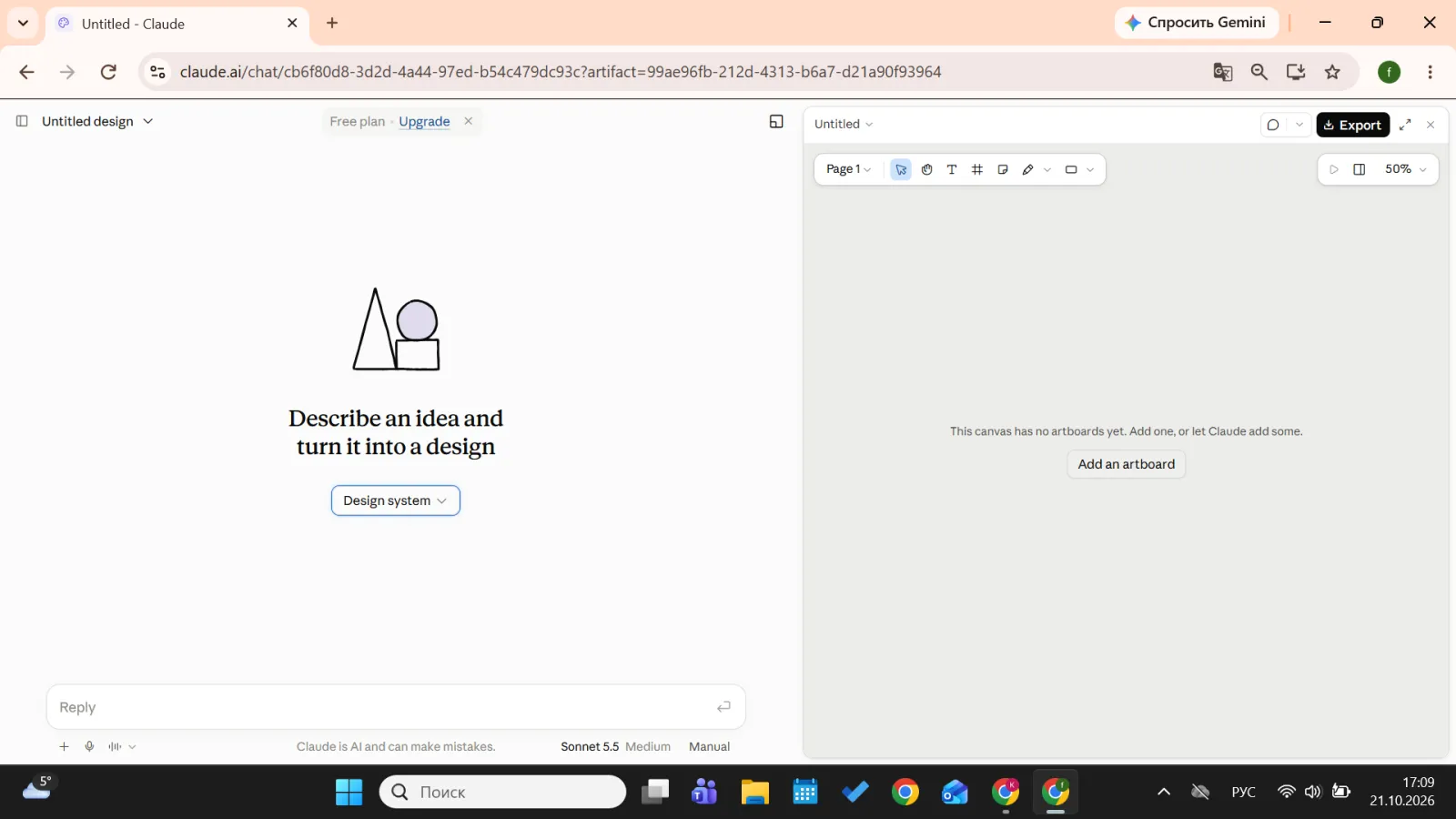
Screenshot 1. An empty Claude Design project: chat on the left, canvas on the right
Your first project, step by step
The fastest way to learn how to use Claude Design is to build one small thing from start to finish. This short Claude Design tutorial uses a landing page because it shows layout, text editing and export in one go. If you’ve never used Claude before, our beginner’s guide to Claude AI covers the basics first.
- Start the project. Open a new chat and pick Output, then Design, or go to the Artifacts tab and choose a Design template.
- Add context. If your team has a design system, attach it. Otherwise upload what you have: a logo, screenshots of pages you like, or an existing document. Claude Design accepts images and DOCX, PPTX and XLSX files.
- Write the prompt. Anthropic suggests four parts: the goal, the layout, the content and the audience. Claude may ask a few clarifying questions before it builds.
- Review the first version. Claude plans the page, builds it, and the result appears on the canvas beside the chat. Treat it as a draft.
- Do one edit round. Use chat for broad changes (“make the palette darker”), click an element to leave an inline comment for targeted fixes (“larger padding on this button”), or drag, resize and align elements directly. Claude also creates adjustment sliders for things like spacing and color.
- Save before you change direction. There’s no version history yet, so tell Claude “Save what we have and try a completely different approach” before a big rework.
- Export or share. The Export button sits in the upper right corner. Designs start private, and Share lets you give others view, comment or edit access.
Here’s the prompt for this first project:
“Build a landing page for Brewline, a monthly coffee subscription for people who work from home. Layout: hero with a headline, a subheadline and one call-to-action button; a three-step “how it works” row; three pricing cards; a short FAQ; a footer. Style: warm and minimal, cream background, dark brown text, one orange accent. Audience: remote workers aged 25 to 40. Design for the desktop first and show the mobile version too”.
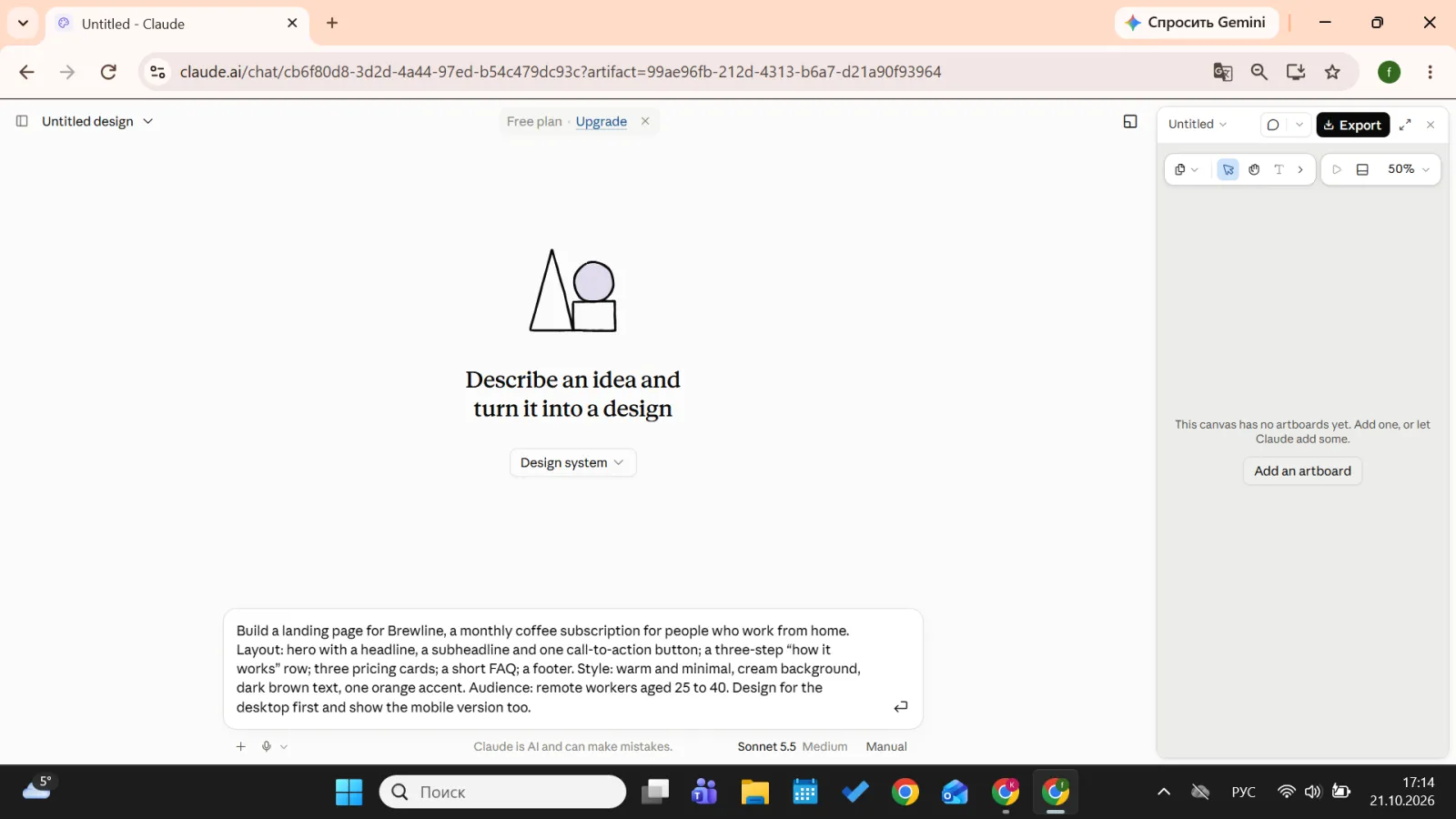
Screenshot 2. The landing-page prompt before sending
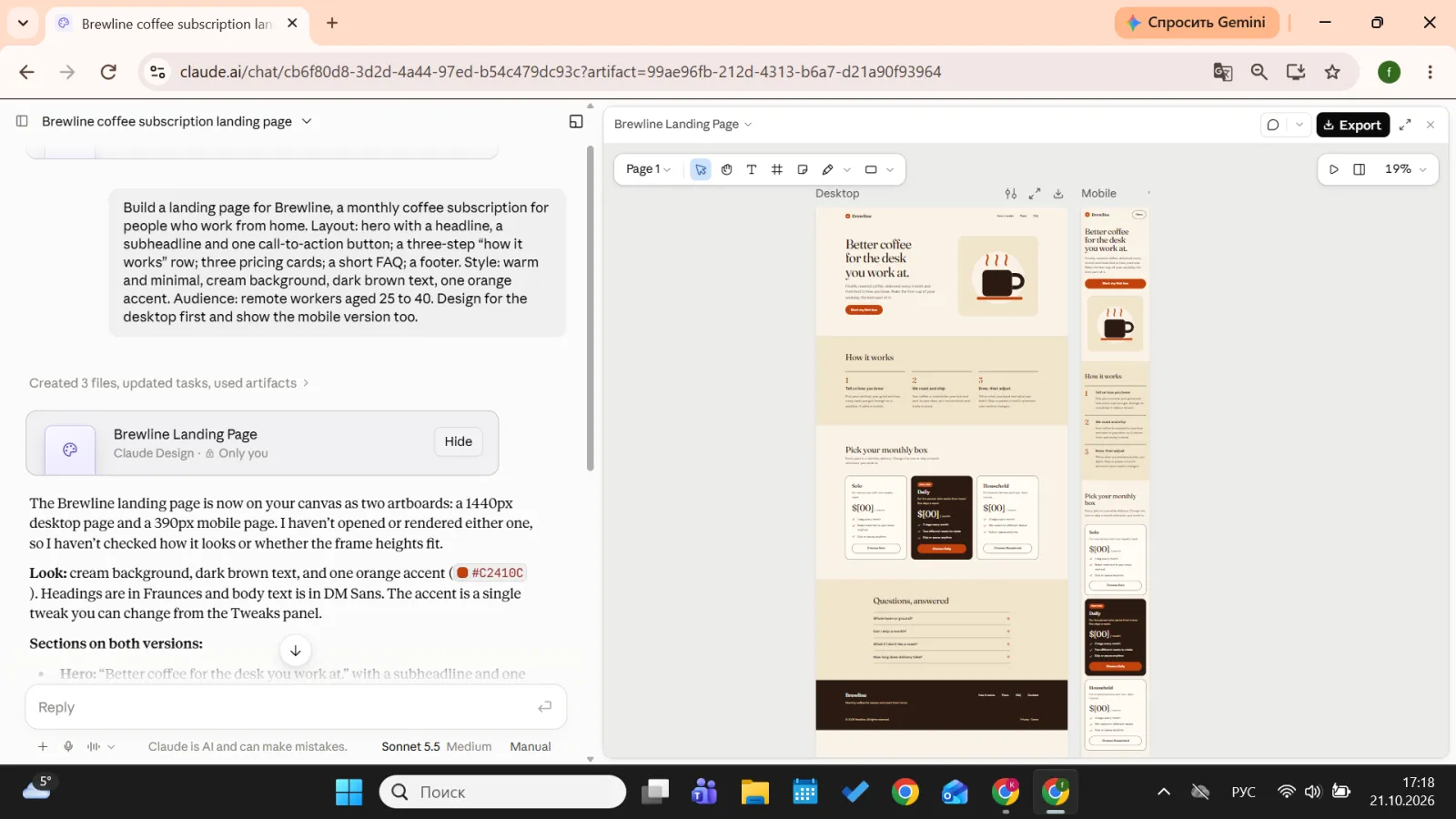
Screenshot 3. The first version of the landing page on the canvas
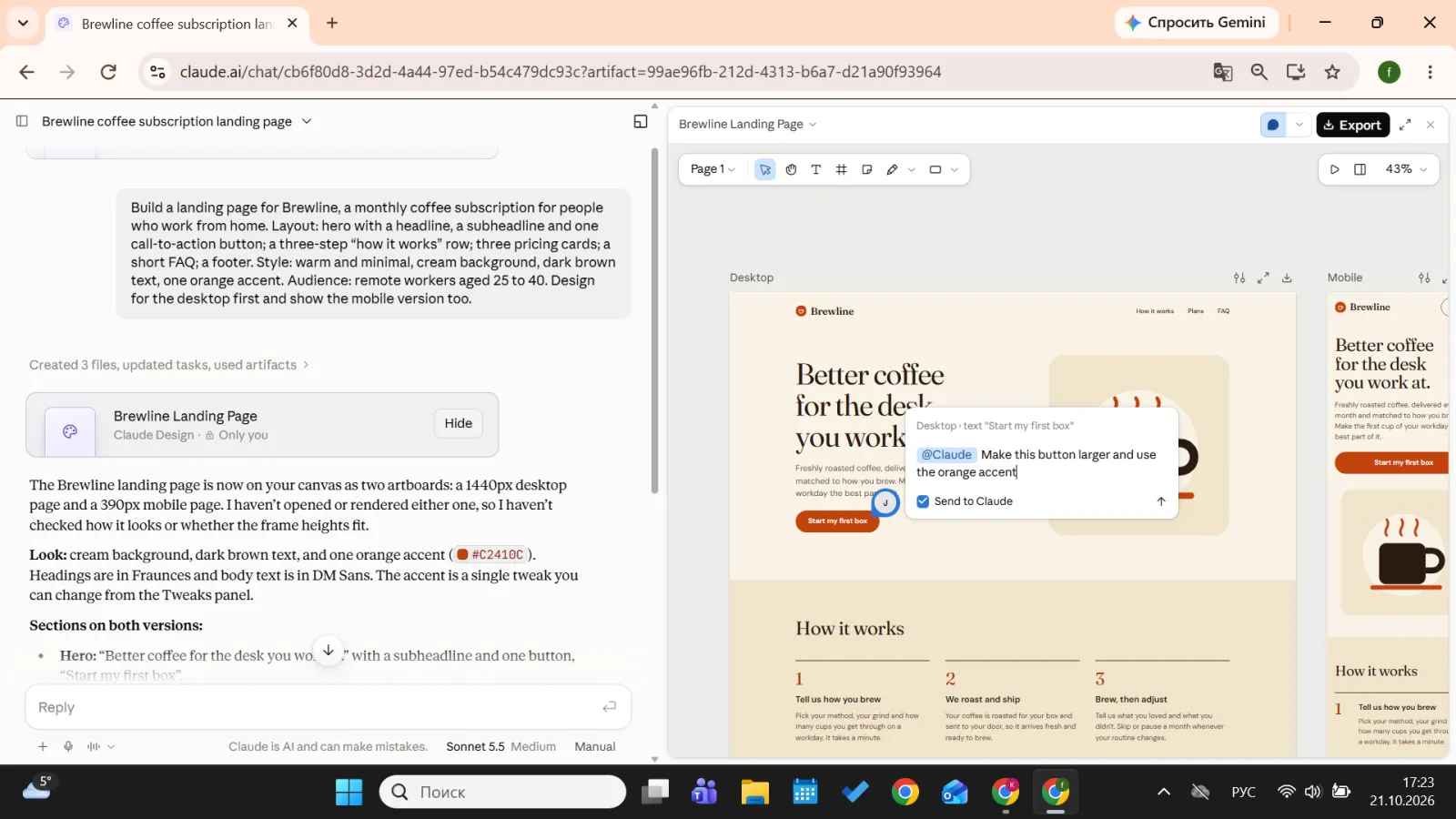
Screenshot 4a. Leaving an inline comment on the hero button
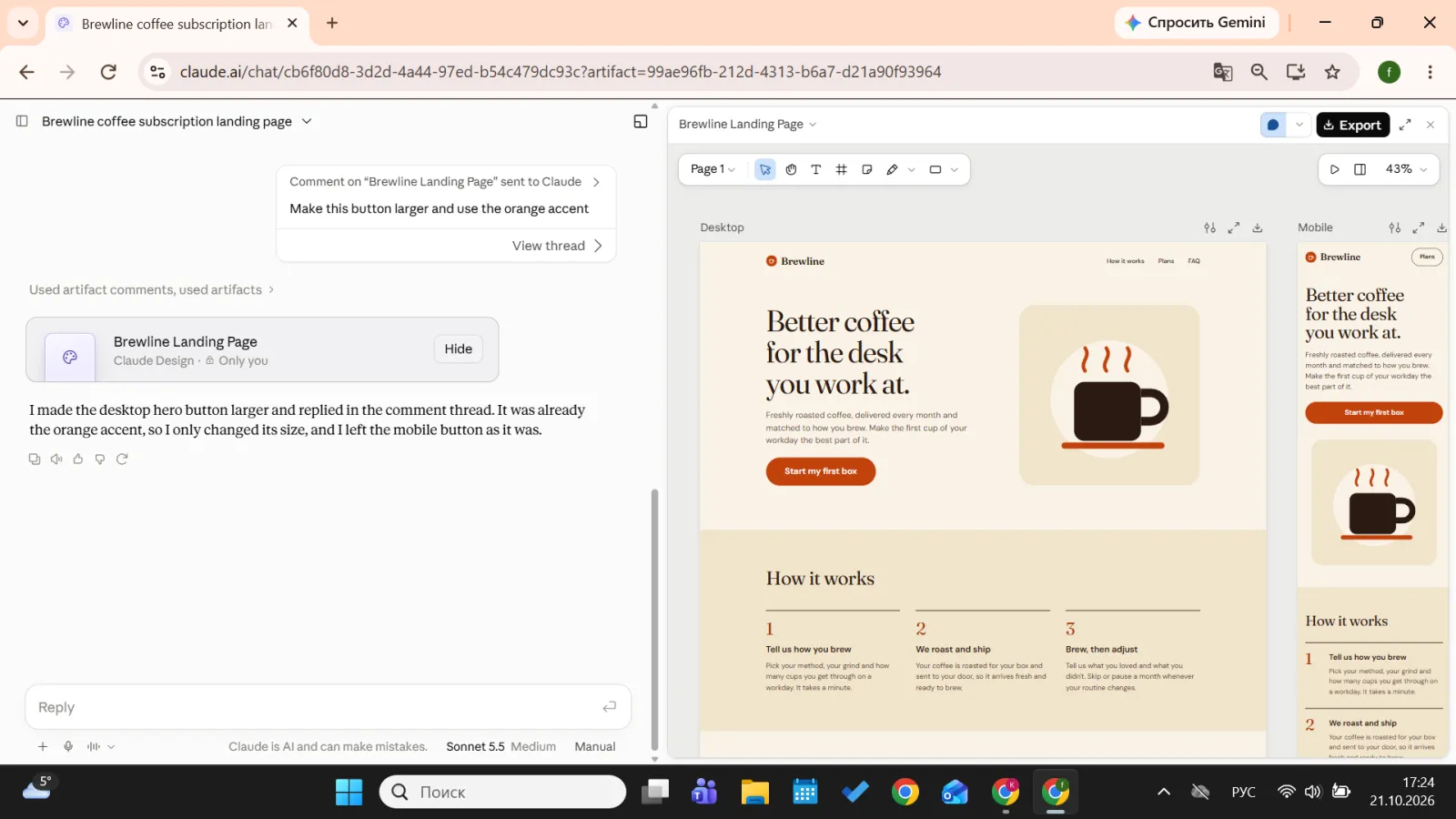
Screenshot 4b. The landing page after the edit
5 workflows to try first, with copy-paste prompts
Each card below has one of the Claude Design prompts worth starting with, plus a line on why it works. Swap in your own product, dates and brand details.
1. Landing-page or website mockup
Prompt: “Design a homepage for a two-person accounting firm in Denver that works with freelancers. Sections: hero with one CTA (‘Book a free call’), three service cards, two client testimonials, a pricing teaser and a contact form. Look: calm and trustworthy, navy and white, lots of white space. Show 2 alternative hero layouts so I can compare”.
Why it works: it names every section and asks for variations up front, so you compare directions instead of rewriting one.
2. Slide deck from a document
Upload a DOCX report or meeting notes first, then ask for the deck. Claude takes the figures from your file, which cuts down on invented numbers. When you’re done, you can export to PPTX or Google Slides. If decks make up most of your design work, compare this approach with dedicated tools in our list of the best AI presentation makers.
Prompt: “Turn the attached report into a 6-slide deck for a leadership meeting. Slide 1: title. Slides 2 to 5: one key finding each, with one chart or one big number per slide. Slide 6: three recommendations and next steps. Use only figures from the document and don’t invent data. Keep each slide under 30 words”.
Why it works: it fixes the slide count, tells Claude where the facts come from and caps text so slides stay readable.
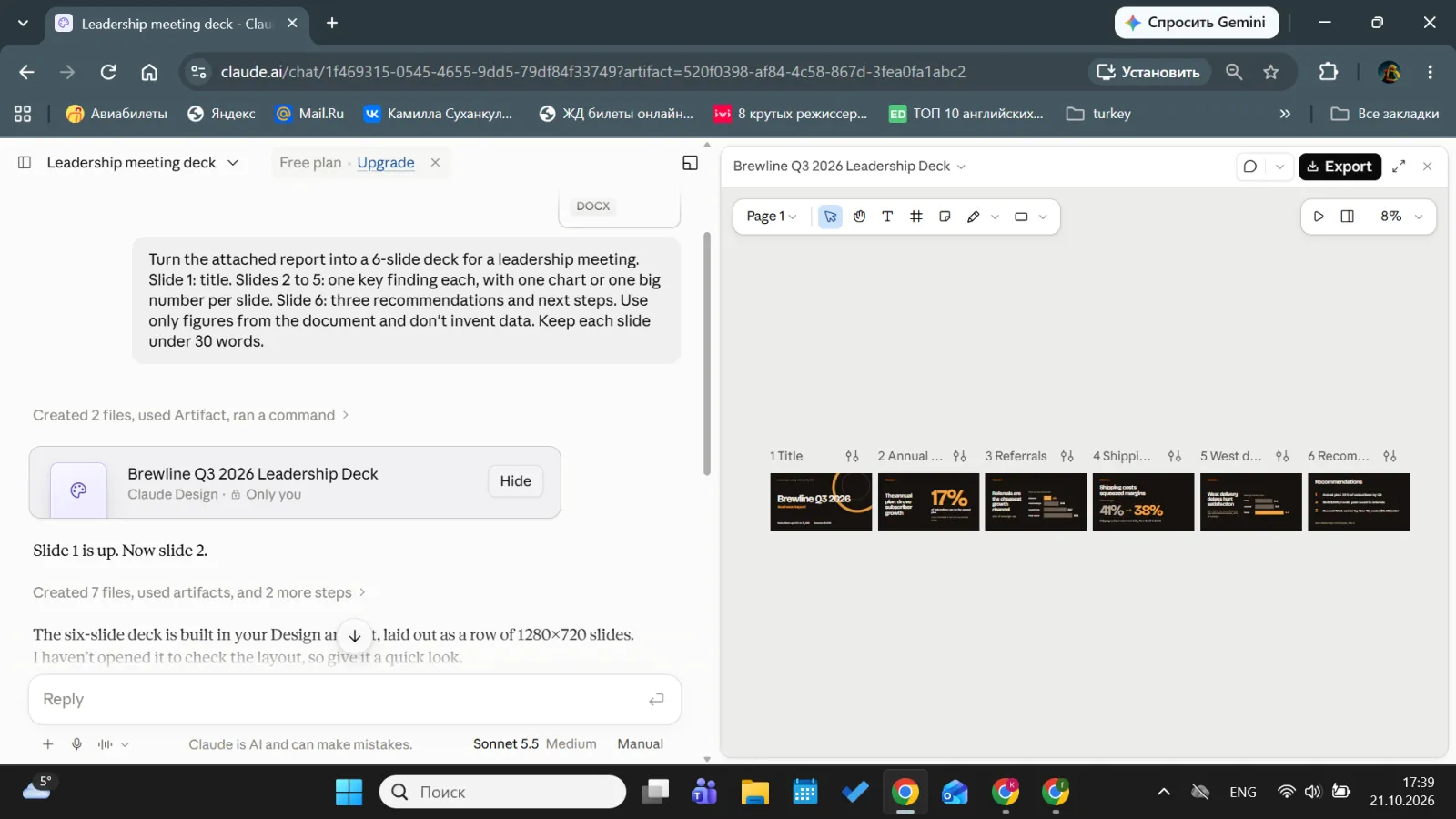
Screenshot 5. A 6-slide deck built from a Word report
3. App prototype and UX flow
Prototypes are where Claude Design differs most from a static mockup tool: screens can be clickable, so you can test a flow with real people. For more ways designers use AI in research and testing, see our guide to AI for UX designers.
Prompt: “Design a 4-screen mobile onboarding flow for a habit-tracking app: welcome, choose goals, set a reminder time, first-day dashboard. Make it a clickable prototype where ‘Next’ moves between screens. Use phone-sized frames, large tap targets and simple line icons. When it’s built, review the flow for accessibility and color contrast and list any problems”.
Why it works: it names each screen, asks for interactivity and turns Claude into a reviewer, which the Help Center lists as one of its strengths.
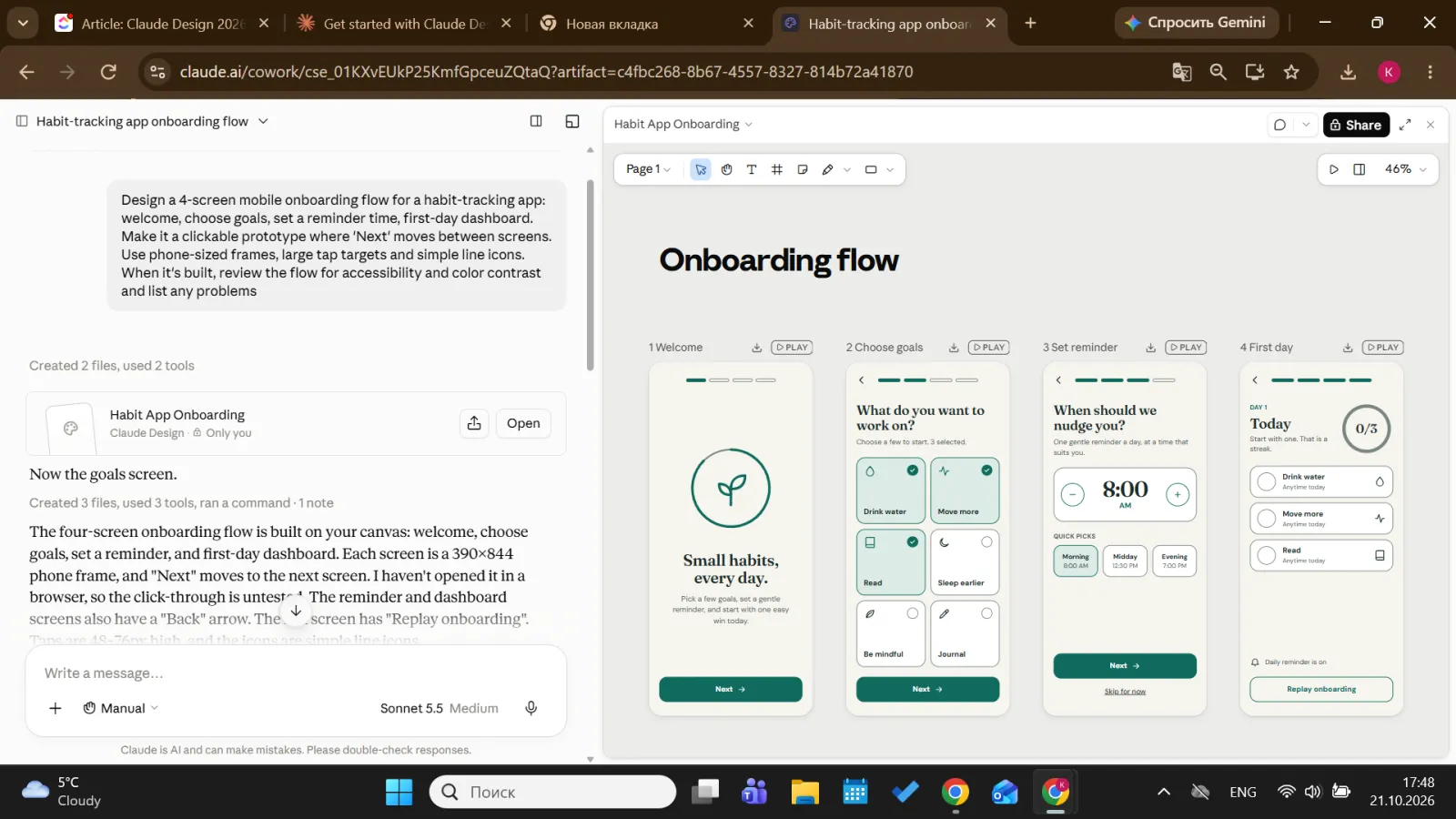
Screenshot 6. A clickable 4-screen onboarding prototype
4. One-pager or social graphic
Small formats are a good test because size and hierarchy matter more than decoration. This is also the kind of quick-turn work that’s changing fastest, as we discuss in will AI replace graphic designers.
Prompt: “Create a one-page A4 portrait flyer for a free online workshop, ‘AI for Small Business Owners,’ on November 20 at 6 p.m. Include a headline, three short benefits, a speaker name placeholder, a QR code placeholder for registration and a clear CTA. Then make a matching 1080 x 1080 Instagram post with the same colors and fonts”.
Why it works: exact dimensions remove guesswork, and asking for two assets at once keeps them visually consistent.
5. Applying your brand (colors, fonts, logo)
There are two routes. The quick one works on every plan, including Free: upload your logo and spell out the rules in the prompt. The second is a design system, which Claude imports from a GitHub repo, design files or uploads and applies to every project, checking its output against the system before you see it. Design systems aren’t available on the Free plan, where the Design system menu asks you to upgrade. On team plans, admins can also lock everyone to one approved system.
Prompt: “Use the attached logo and these brand rules for everything in this project: primary #1F3A5F, accent #F2A541, background #FAFAF7; headings in Poppins SemiBold, body text in Inter Regular; 8px rounded corners and plenty of white space. Build a product announcement banner for our website in this style, then list the rules you applied so I can reuse them”.
Why it works: hex codes and font names leave nothing to interpretation, and the final list gives you a brand spec to paste into future projects.
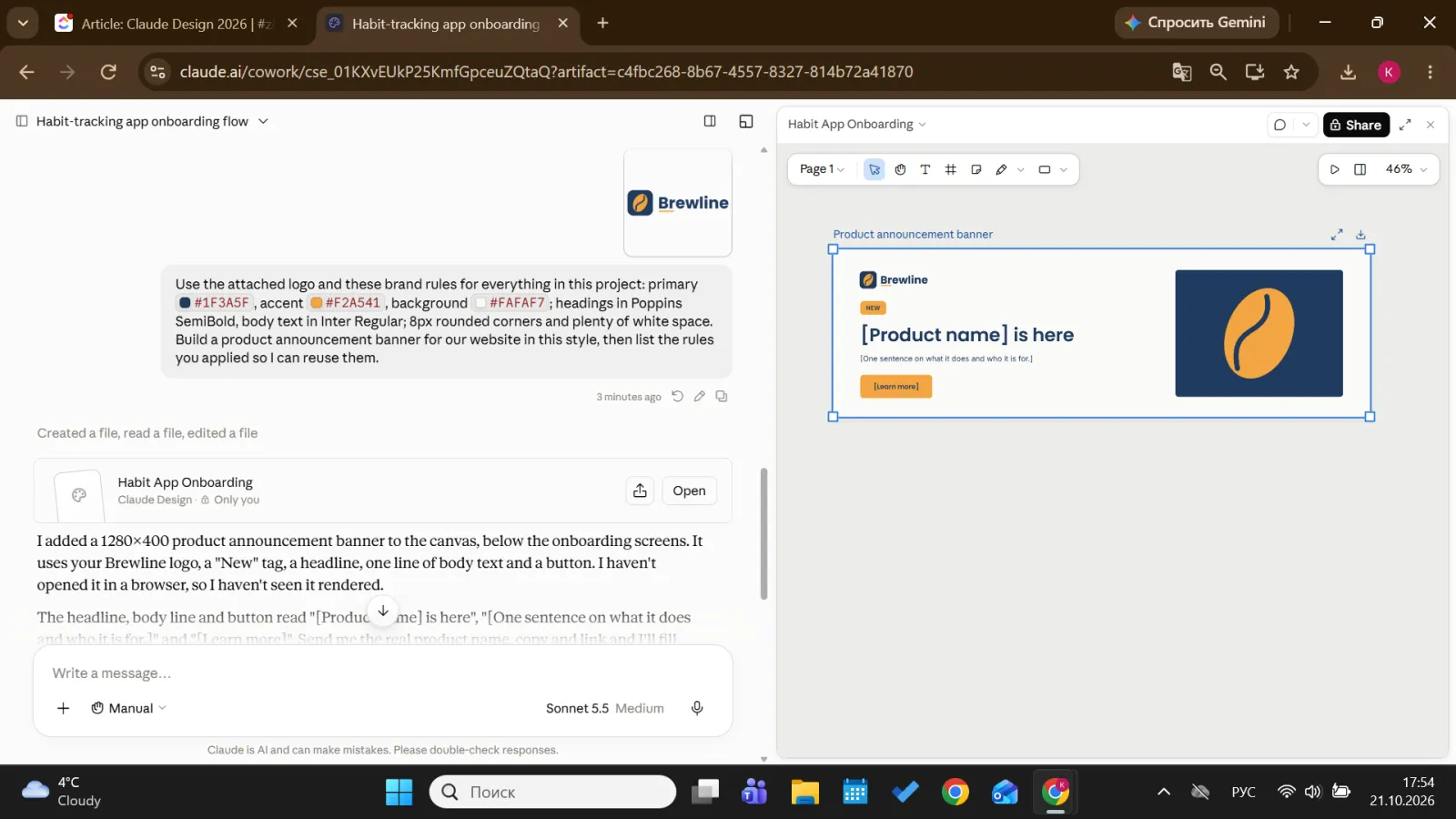
Screenshot 7. A website banner built from a logo and brand rules
Tips for better results
- Give references. Screenshots of pages you like, competitor products or an old deck in your style work better than adjectives. “Make it look like this” plus an image beats “modern and clean”.
- Set constraints. Sizes, slide counts, word limits, hex codes and target devices all narrow the result. Mention early whether the design must work on mobile, tablet or desktop.
- Iterate in small steps. Start with the core layout and content, then add interactions and polish. Specific feedback gets specific fixes: “tighten the spacing between form fields to 8px” works, “this looks off” doesn’t. If an inline comment doesn’t seem to register, paste the same feedback into the chat; Anthropic lists this as a known workaround.
- Use design systems and names. A complete system with styles, fonts and components gives the most consistent output. If you know a component exists, refer to it by name, such as “use the Primary Button component”. Reusable instructions aren’t only a design idea, either: Claude Skills do a similar job for recurring tasks outside the canvas.
- Ask for a critique. Claude can review a design for accessibility, contrast, information hierarchy and usability.
Exporting and handing off to developers
The Export menu currently offers a .zip download, PDF, PPTX, Google Slides and standalone HTML. You can also send work to other apps, including Canva, Gamma, Miro, HubSpot, Lovable, Replit, v0, Vercel, Netlify, Wix and several Adobe products. Each design stays private until you share it.
For developers, the useful part is the Claude Code handoff. From the Export menu you can send a design to a local coding agent or to Claude Code on the web, and Claude Code picks up from your actual design rather than rebuilding from a screenshot. It works in the other direction too: /design-sync in Claude Code pulls your existing design system into Claude Design, and /design imports a design into your codebase. If the terminal side is new to you, start with our guide on how to use Claude Code for beginners.
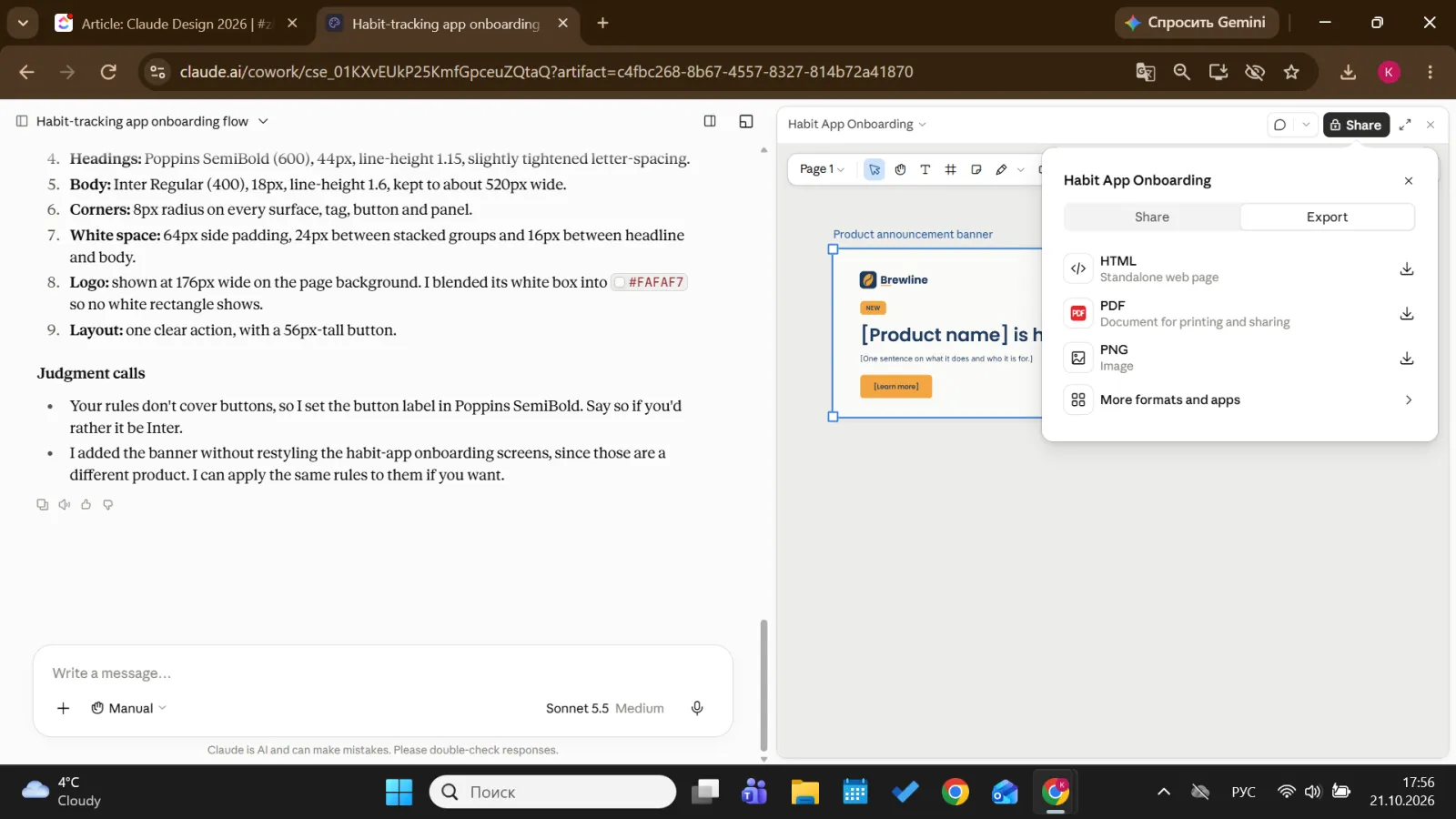
Screenshot 8. The Export menu with file formats and the Claude Code handoff
Claude Design vs Figma vs Canva: Which tool for which job
The three tools also connect: Claude Design can send work straight to Canva, and Figma has its own prompt-based tool, Figma Make. If Canva is already part of your routine, our walkthrough of how to use Canva AI shows what its built-in AI covers.
| Job | Best fit | Why |
|---|---|---|
| First draft of a page, deck or flow from a text prompt | Claude Design | Builds the whole layout from a description and takes edits through chat |
| Detailed UI design and shared design libraries for a design team | Figma | Built for collaborative interface design and prototyping in one place |
| Prompt-to-prototype inside an existing Figma workflow | Figma | Turns prompts or existing Figma designs into interactive prototypes using your library styles |
| Social posts and flyers from ready-made templates | Canva | Large template library and a drag-and-drop editor with AI features |
| Design that needs to become working code | Claude Design | Direct handoff to Claude Code |
| Polishing a Claude draft with your team | Claude Design, then Canva | Send to Canva, where the draft becomes an editable Canva design |
Limits: what Claude Design can’t do yet
Anthropic’s Help Center lists these known limitations:
- No version history. Save a direction in the chat before you rework it.
- Basic co-editing. Two or more people editing the same design at once may not work reliably.
- Patchy comments. Inline comments sometimes don’t appear on the page, though they show in the comments view.
- Import quality. A design system import is only as good as its source. A messy codebase or incomplete file shows up in the output.
- Large codebases. Very large repositories can cause lag, so Anthropic recommends linking them from Claude Code.
- Usage limits. When you hit your plan’s limit, Claude Design stops working until the limit resets.
- Mobile. You can’t change sharing settings in the iOS or Android app.
For AI-generated pictures rather than layouts, see our separate answer to can Claude generate images.
Is Claude Design worth it?
Since it’s on every plan, the real cost is usage and review time. Here’s who gains most:
- Founders get a pitch deck or landing page in an afternoon without hiring a freelancer for the first version.
- Product managers can turn a feature idea into a clickable flow before writing a spec, then hand it to Claude Code or a designer.
- Marketers can produce campaign one-pagers and social assets and send them to Canva or HubSpot. If your work is mostly files, documents and repetitive desktop tasks rather than visuals, Claude Cowork is the closer match.
- Designers benefit in a different way. Claude Design won’t replace final polish or design judgment, but it makes exploring ten directions as cheap as exploring two. The bigger career question is covered in will AI replace UX designers.
Learn to brief AI well
Claude Design will look different in a few months. The skill of briefing AI clearly, with goals, constraints and good feedback, stays useful whichever tool you pick. Coursiv’s 28-Day AI Certificate Program helps you learn Claude, Canva AI and design workflows in short daily lessons, and you finish with a certificate of completion. You can also browse the full AI Certificate Program.